Open my panel
📖 Illustrated, searchable, step-by-step

From sign-up to live translation

Follow the pictures. Set up your account, choose languages, go live, and see exactly how your attendees connect and read — on their own phones.

No matching steps. Try another word — like hall, language, invoice or QR.

1Overview (dashboard)

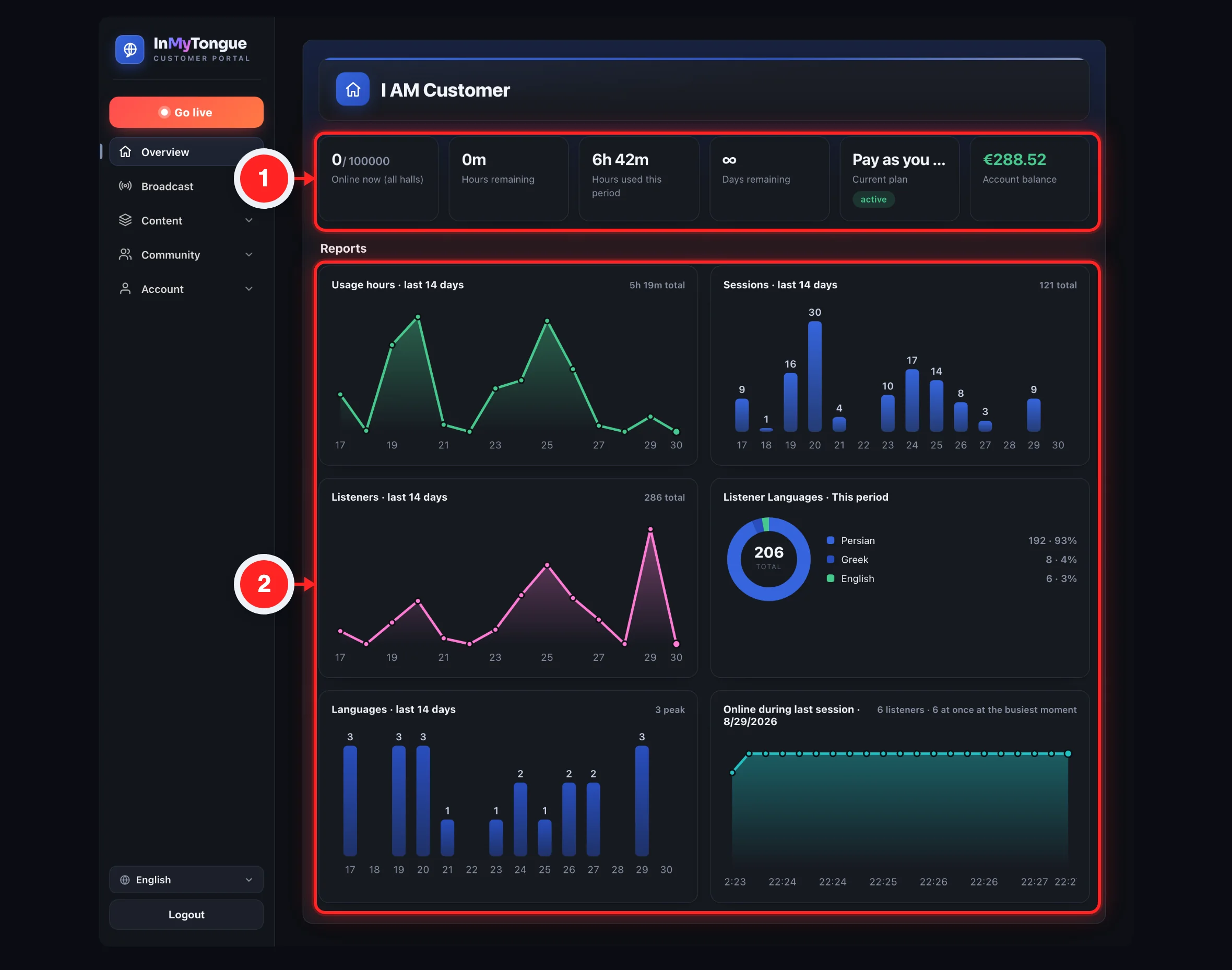
The Overview is your panel's home tab — a read-only snapshot of your church account. At the top a status banner tells you if anything needs attention, then a grid of stat cards (online listeners, hours remaining and used, days left, your current plan, and your account balance) gives you the key numbers at a glance. If you owe money, a red alert card appears. Below that, a Reports section shows a Plan balance card and four activity charts. The only thing you can click here is the red unpaid-invoices alert, which jumps you straight to the Invoices tab.

inmytongue.com/panel/
OverviewPlan & BillingInvoicesHalls
⚠️ Your plan expires in 5 day(s).
⚠ £48.002 UNPAID INVOICE(S) · PAY NOW →
3 / ∞ ONLINE NOW (ALL HALLS)
12hHOURS REMAINING
8hHOURS USED THIS MONTH
5DAYS REMAINING
Standard activeCURRENT PLAN
£20.00ACCOUNT BALANCE
The Overview dashboard: a status banner on top, a red full-width "unpaid invoices · Pay now →" alert card when money is owed, then a grid of stat cards (Online now, Hours remaining, Hours used, Days remaining, Current plan with status badge, Account balance).
inmytongue.com/panel/
⏱️
Plan balance

12h of 20h remaining · 5 of 30 days remaining. "⏱ Hours are your limiting factor."

📈
Usage hours · last 14 days

Area chart of broadcast hours per day. "8h total" as subtitle.

📊
Sessions · last 14 days

Bar chart of sessions per day, with the 14-day total.

👥
Listeners · last 14 days

Area chart of listener counts per day, with the 14-day total.

🌍
Listener Languages · This Month

Donut chart of which languages your listeners used this month.

The Reports section: a "Plan balance" card (remaining hours and days with progress bars and a limiting-factor note) followed by four charts — Usage hours, Sessions, and Listeners over the last 14 days, and a Listener Languages donut for this month.

Everything on this tab

My Account (page title)The big heading at the top of the tab — it shows your organization's name. It's the church/org name, not your personal login name. If no org name is set, it falls back to the literal words "My Account".
Status bannerA single colored notice line above the stat cards. It only appears in certain states and shows one of four messages about your subscription. Purely informational here — there's no button. To act on it you go to the Plan & Billing or Invoices tab.
Banner: "Your service is suspended — please pay your outstanding invoice to reactivate it."An amber banner shown when your subscription status is "suspended". Means broadcasting is blocked until the outstanding invoice is paid.
Banner: "Your subscription is {status}. Renew to keep using inmytongue."A red banner shown when your subscription is "canceled" or "expired" ({status} is the literal status word). Renewal happens in Plan & Billing, not from this banner.
Banner: "Your plan expires in {n} day(s)."An amber banner shown when your plan is active but the current period ends in 7 days or fewer. Only appears when days-left is between 0 and 7 inclusive; it disappears once you renew.
Banner: "You don't have an active plan yet. Pick one under Plan & Billing."A neutral banner shown when you have no subscription at all. Directs you to the Plan & Billing tab to choose a plan.
Unpaid invoices alert card (⚠ amount · "{n} unpaid invoice(s) · Pay now →")A full-width red alert card at the top of the grid. The big number is the total owed (amount plus tax across all unpaid, non-canceled invoices) and the label shows how many unpaid invoices you have plus "Pay now →". Clicking it (or pressing Enter/Space when focused) jumps to the Invoices tab pre-filtered to "Unpaid". This is the ONLY clickable card. It only appears when you have at least one unpaid, non-canceled invoice, and it doesn't pay anything itself — it just navigates you to the Invoices tab with the Unpaid filter applied.
"Online now (all halls)" cardThe current count of live listeners across all your halls, optionally shown as "online / allowed" (allowed = your plan's max concurrent users; shows ∞ if the limit is unlimited). When at least one listener is online the card highlights with a green live dot. This is a live snapshot at page load (and on refresh), not a running total. "∞" means unlimited concurrent viewers.
"Hours remaining" cardHours (or minutes) left in your plan for the current period — read from the remaining seconds in your hour bucket, or plan cap minus hours used. Shows "—" when remaining is unknown (e.g. before your first plan, or for unlimited plans). Plans under 1 hour (like the 20-minute free plan) are shown in minutes. For per-language plans the bucket drains faster — each enabled language counts — so this reflects language-weighted usage, not raw broadcast time.
"Hours used this month" cardHours (or minutes) already used this period — from the hour bucket (granted minus remaining) when one exists, otherwise raw broadcast seconds this month. Shown in minutes for sub-1-hour plans. "this month" really means the current billing-period bucket when one exists.
"Days remaining" cardWhole days left until the current billing period ends. Shows "—" when you have no subscription. It rounds up and never goes below 0.
"Current plan" card (+ status badge)Your subscription's package name, with a status badge next to the "Current plan" label — green "active", amber "suspended", or red "expired". Shows "—" with a neutral badge when you have no plan. The badge text is the raw status word from the backend.
"Account balance" cardYour prepaid account balance (e.g. from referral rewards, downgrade credits, or top-ups), shown in your currency in a shortened format; the full value appears as a hover tooltip. This is your stored credit, not the amount you owe. The number is abbreviated — hover to see the exact amount.
Reports (section heading)A static "Reports" heading that introduces the balance card and charts below the stat cards. Label only; not interactive.
"Plan balance" card (Reports)A summary card showing remaining hours "of {cap}" with a progress bar, and (for fixed-period plans) remaining days "of {n} days" with its own bar. A subtitle states your limiting factor — "⏱ Hours are your limiting factor" or "📅 Days are your limiting factor" — and the binding factor's bar is highlighted (turning red at 90% or more consumed). Only appears for active capped subscription plans with a bucket that are NOT pay-as-you-go (PAYG accounts get no card). For per-language plans it adds the note: "⏱ Hours are counted per language enabled for your hall — broadcasting 1 hour with 2 languages uses 2 hours of your balance." Hours shown in minutes for sub-1-hour plans.
"Usage hours · last 14 days" chartAn area chart of broadcast hours per day over the last 14 days, with the 14-day total ("Xh total") as the card subtitle. Hovering a point shows that day's value, e.g. "1h 30m". Read-only chart. If the reports data fails to load, the whole charts row is replaced by just the Plan balance card.
"Sessions · last 14 days" chartA bar chart of how many broadcast sessions ran per day over the last 14 days, with the 14-day total as the subtitle. Read-only.
"Listeners · last 14 days" chartAn area chart of listener counts per day over the last 14 days, with the 14-day total as the subtitle. Read-only.
"Listener Languages · This Month" chartA donut chart breaking down which languages your listeners used this month, each slice labeled with the localized language name. Read-only. No subtitle total. It covers the current month, unlike the other three charts which cover the last 14 days.

Read your account status at a glance

  1. Open the panel The Overview tab is the default landing page; clicking the Overview nav item also loads it.
  2. Check the status banner at the top It tells you if your plan is suspended, canceled/expired, expiring within 7 days, or missing.
  3. Scan the stat cards Online listeners, hours remaining, hours used, days remaining, current plan plus status badge, and account balance.

Pay outstanding invoices from the dashboard

  1. Look for the red alert card If you owe money, a full-width red card appears at the top of the stat grid showing the total due and how many invoices are unpaid.
  2. Click the red alert card Or focus it and press Enter/Space.
  3. You land on the Invoices tab The filter is automatically set to "Unpaid", where you can pay each invoice.
💡 The red alert card is the only clickable item on this whole tab — and it never charges you. It simply takes you to the Invoices tab with the Unpaid filter already applied.

Review usage trends and plan balance

  1. Scroll down to the "Reports" section Below the stat cards.
  2. Read the "Plan balance" card If you're on a capped subscription plan: remaining hours vs cap and remaining days vs period, plus which one (hours or days) is your limiting factor.
  3. Read the four charts Usage hours, sessions, and listeners for the last 14 days, and listener languages for the current month, to see your activity trends.
⚠️ On per-language plans, hours are counted per enabled language — broadcasting 1 hour with 2 languages uses 2 hours of your balance. That's why your hours can drain faster than the clock time you actually went live.

Act on an expiring or missing plan

  1. Notice the banner For example "Your plan expires in N day(s)" or "You don't have an active plan yet".
  2. Go to the Plan & Billing tab As the banner tells you, to renew or choose a plan.
💡 The Overview tab has no plan-change or pay button of its own (apart from the red alert shortcut). All renewing and plan-picking happens on the Plan & Billing tab.

2Halls & QR

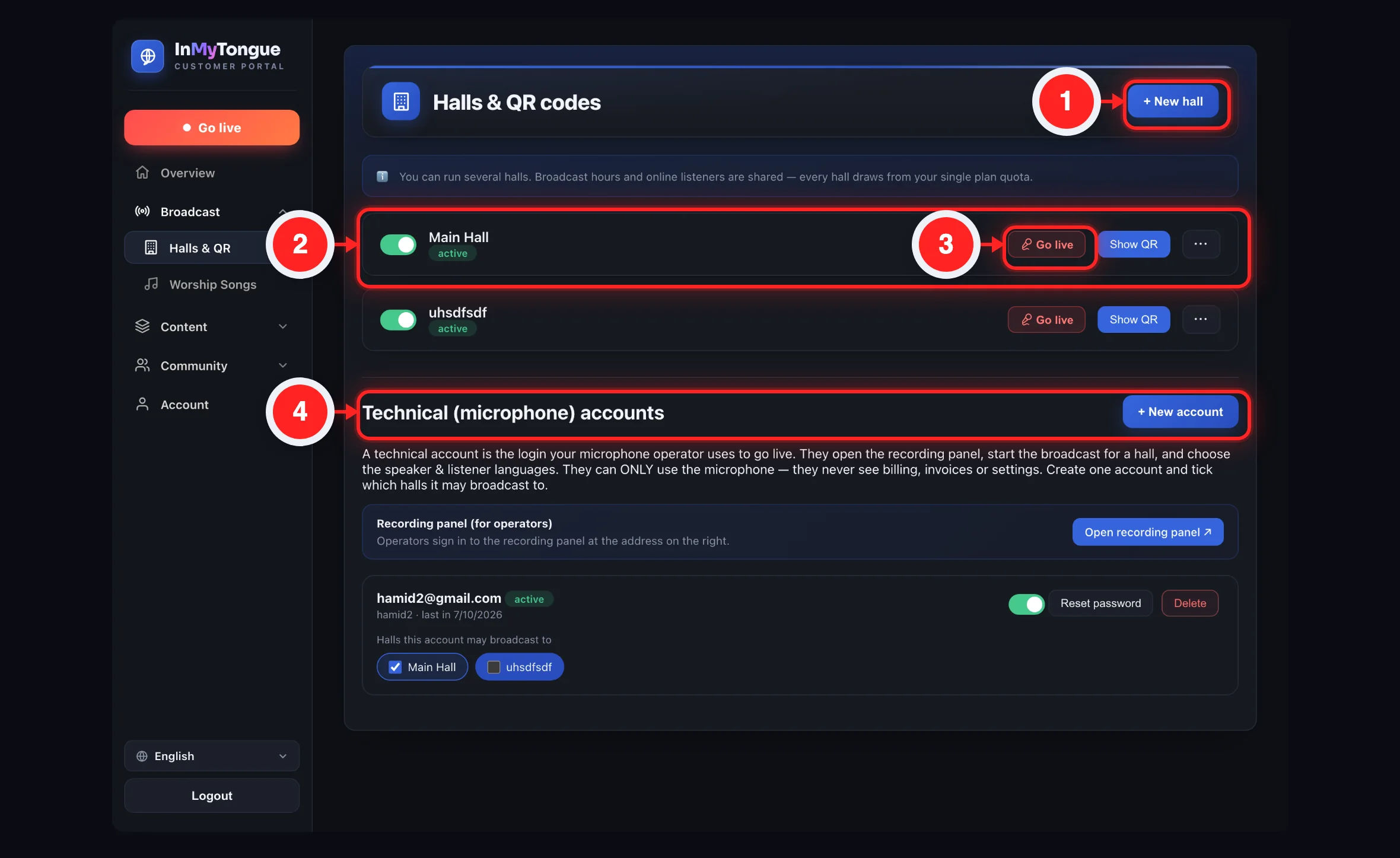
The "Halls & QR codes" tab is where you manage your broadcast halls (rooms) and the technical (microphone-operator) login accounts. For each hall you create a scannable QR code that your audience uses to watch live subtitles on their phones. From here you can go live, rename, enable or disable a hall, and reissue its QR. Below the halls you manage "technical accounts" — restricted logins your operators use only to start a broadcast for the halls you choose.

inmytongue.com/panel/
PlanHalls & QRInvoicesProfile
Main Sanctuary

● LIVE   active

🎙️GO LIVE
🔳SHOW QR
✏️RENAME
♻️REISSUE QR
A hall card showing the on/off switch, active badge, and the Go live / Show QR / Rename / Reissue QR action buttons in a row.
QR

People scan this to watch live subtitles on their phone.
inmytongue.com/listen/?h=main-sanctuary
🖨️ Print

The QR modal: the scannable QR code, the "People scan this…" hint, the clickable listener URL, and the Print button.
mic@church.org
John
••••••
Main Sanctuary ✕Chapel ✕+ add
The New technical account modal: email, optional name, password (min 6) fields plus the checkbox chips for "Halls this account may broadcast to".

Halls

+ New hallTop-right button. Opens the hall window in create mode (title "New hall", button "Create") with an empty name field, to add a new hall. The title and button text are set fresh each time; the same window is reused for renaming, so here it always resets to create mode.
Halls list note bar (ℹ️)Banner above the hall cards: "You can run several halls. Broadcast hours and online listeners are shared — every hall draws from your single plan quota." Always shown, even when you have no halls yet.
No halls empty stateWhen you have zero halls, shows "No halls yet. Create one to get a QR code your audience can scan." instead of cards.
Hall on/off switchToggle on each hall card. Turning ON applies immediately. Turning OFF first shows a warning ("Disable this hall?" — "Listeners will no longer be able to join this hall until you enable it again." — confirm "Disable hall"). If you cancel the disable warning, the switch snaps back to ON. A disabled hall card is greyed out.
Hall active/off badgeSmall status pill under the hall name: green "active" when enabled, neutral "off" when disabled.
● LIVE badgeRed badge next to the hall name, shown only while a session is live for that hall. If it's your own live session in this browser it's clickable to reopen the live window; if it's a saved session it's clickable to resume; otherwise it's just a label. Only appears when the server reports a live session (or your own in-browser broadcast).
🎙️ Go liveThe main per-hall action. Normally opens the in-panel broadcast/recording flow for that hall. If your broadcast for this hall is already running it reads "🔴 Open live"; if a saved session can be resumed it reads "🔴 Resume broadcast". The label and what it does change based on the live state. Broadcasting from any hall draws hours and listeners from your single shared plan quota.
Show QRPer-hall button. Opens the QR window, loads the hall's QR code, and shows it as an image plus the clickable listener URL. While loading it shows a placeholder; on error the QR area shows "—".
✏️ RenameOpens the same hall window in edit mode: title "Rename hall", button "Save", name pre-filled and selected. Saving renames the hall and shows a "Hall renamed ✓" toast. The name field is auto-focused and selected after a moment.
Reissue QRShows a warning ("Reissue QR code?" — "A brand-new QR code will be generated for this hall. The current code stops working immediately — any printed copies must be replaced. This cannot be undone." — confirm "Yes, reissue"), then generates a fresh QR and reloads. Irreversible: instantly kills the old QR, so any printed copies must be reprinted.

Technical (microphone) accounts

Section divider + heading"Technical (microphone) accounts" — the title for the operator-account manager that lives on this same tab, below the halls.
+ New accountButton by the technical-accounts heading. Opens the new-operator window with a fresh form and a checkbox list of your halls to grant access. If you have no halls yet, the hall picker shows "No halls yet…" and you can't grant any hall access.
Technical accounts intro textExplains that a technical account is the login a mic operator uses to go live: they open the recording panel, start the broadcast for a hall, choose speaker and listener languages, and can ONLY use the microphone — never billing, invoices or settings. Tick which halls each account may broadcast to.
Recording panel note + "Open recording panel ↗"A note titled "Recording panel (for operators)" with the text "Operators sign in to the recording panel at the address on the right." and a link that opens the operator recording panel in a new tab. This link opens the technical recording app, NOT the customer panel.
No operators empty stateWhen there are no technical accounts, shows "No operators yet."
Operator card — email + badgeEach operator card shows the email in bold and a badge: green "active" or neutral "disabled".
Operator card — name + last seen lineA sub-line showing the optional full name then the last login: "last in {date}", or "never signed in" if they have not logged in yet.
"No hall selected" warningRed warning row on an operator card: "⚠ No hall selected — this account cannot broadcast anywhere yet." shown when the operator has no halls assigned. Such an operator is useless until you tick at least one hall chip.
Operator on/off switchPer-operator toggle. Enables or disables the account immediately. Unlike disabling a hall, disabling an operator has no warning dialog.
Reset passwordPer-operator button. Opens the reset-password window pre-targeted at that operator to set a brand-new password. You CAN reset an operator's password here — unlike church members, whose passwords only the member can change.
DeletePer-operator danger button. Shows a warning ("Delete operator?" — "This account will be removed and can no longer open the microphone. This cannot be undone." — confirm "Delete operator") then removes the account. Irreversible.
Operator hall-access chipsA row of toggle chips labeled "Halls this account may broadcast to" — one chip per hall, ticked = access. Toggling any chip saves the full current set of ticked halls. It sends the complete list each time, not a single add/remove; if you have no halls it shows "No halls yet…".

The windows (modals) on this tab

[New / Rename hall] Hall name fieldRequired text box labeled "Hall name" with placeholder "e.g. Main Sanctuary". Holds the new or renamed hall's name. Saving is blocked if the name is empty.
[New / Rename hall] Cancel / ✕Closes the hall window without saving.
[New / Rename hall] Create / SaveThe submit button. Reads "Create" for a new hall or "Save" when renaming. Its label and behavior depend on whether you opened via "+ New hall" or "✏️ Rename".
[QR window] QR cardShows the hall's QR code image returned by the server; the window title is set to the hall name. Shows a loading placeholder first; "—" if it fails to load.
[QR window] Scan hintCaption: "People scan this to watch live subtitles on their phone."
[QR window] Listener linkThe hall's public listener URL rendered as a clickable link that opens in a new tab. This is the same URL the QR encodes; you can share it directly instead of the QR.
[QR window] PrintOpens a print-friendly popup with the hall name, scan hint, large QR, the URL, and a Print button. Requires popups to be allowed; if the popup is blocked nothing happens. The URL and print button are hidden in the actual printout.
[QR window] ✕Closes the QR window.
[New account] Operator emailRequired email box for the new technical account's login. If the email already exists you get "That email is already in use.".
[New account] Name (optional)Text box for the operator's display name; optional.
[New account] Password (min 6)Required password box for the new account; at least 6 characters. The label here says "Password (min 6)".
[New account] Halls pickerCheckbox chips, one per hall, to grant the new operator access; ticked halls are saved. If you have no halls it shows "No halls yet…" and the new account starts with no broadcast access.
[New account] Cancel / ✕Closes the new-operator window without creating it.
[New account] Create accountCreates the account, shows "Saving…" then closes and refreshes the operator list on success. The inline message area shows errors like "That email is already in use." without closing the window.
[Reset password] Target email lineShows "Set a new password for {email}" so you know which operator you're resetting.
[Reset password] New passwordRequired password box for the operator's new password. Must be at least 6 characters or you get "Password must be at least 6 characters.".
[Reset password] Confirm new passwordRequired box that must match the new password. A mismatch shows "The two passwords do not match.".
[Reset password] Cancel / ✕Closes the reset-password window without changing anything.
[Reset password] Save changesSaves the new password; on success closes the window and toasts "Password changed.". Validation errors appear inline and keep the window open.
[Warning dialog] Cancel / ConfirmA shared warning dialog (⚠️) reused for Disable hall, Reissue QR, and Delete operator. "Confirm" is a red button whose label and text are set per action; "Cancel" dismisses with no change. The same dialog drives all three of these actions; only its title, body, and confirm label change.

How to…

Add a new hall

  1. Click "+ New hall" top right
  2. Type the Hall name e.g. Main Sanctuary
  3. Click "Create"
  4. The new hall appears as a card use "Show QR" to get its scannable code

Rename a hall

  1. Click "✏️ Rename" on the hall card
  2. The window opens in edit mode with the current name selected
  3. Edit the name and click "Save"
  4. A "Hall renamed ✓" toast confirms

Show / share / print a hall's QR

  1. Click "Show QR" on the hall card
  2. The QR window shows the code and the listener URL
  3. Optionally click the URL to open the listener page or copy it to share
  4. Click "Print" to print the QR for posting in the hall
💡 The listener link is the same address the QR encodes — you can share it directly (email, chat, your website) instead of the printed code.

Reissue (regenerate) a QR code

  1. Click "Reissue QR" on the hall card
  2. Read the warning the old QR stops working immediately and printed copies must be replaced
  3. Click "Yes, reissue" to confirm
  4. Reprint and redistribute the new QR the old one is now dead
⚠️ Reissuing cannot be undone. The moment you confirm, every printed copy of the old QR stops working — only do this if you really need a fresh code.

Disable / enable a hall

  1. To disable: flip the hall's switch off then click "Disable hall" in the warning — or Cancel to keep it on (the switch snaps back)
  2. While disabled, listeners cannot join and the card shows the "off" badge
  3. To re-enable: flip the switch on applies immediately, no warning

Go live from a hall

  1. Click "🎙️ Go live" on the hall card
  2. The in-panel broadcast flow opens for that hall choose listener languages, save-sermon options, worship songs, then start
  3. While live, the card shows a red ● LIVE badge and the button becomes "Open live" / "Resume broadcast" so you can reopen or resume the session
💡 Hours and online listeners are shared across all your halls — broadcasting from any one of them draws from your single plan quota.

Create a technical (operator) account

  1. Scroll to "Technical (microphone) accounts" and click "+ New account"
  2. Enter the operator email, optional name, and a password min 6 characters
  3. Tick the halls this account is allowed to broadcast to
  4. Click "Create account"
  5. Give the operator the email/password and the "Open recording panel ↗" address so they can sign in to the recording panel only

Change which halls an operator can broadcast to

  1. Find the operator's card under Technical accounts
  2. Tick or untick halls in the chips row "Halls this account may broadcast to"
  3. Each change saves automatically
  4. If none are ticked, the card shows the "⚠ No hall selected" warning and that account can't broadcast

Reset an operator's password

  1. Click "Reset password" on the operator's card
  2. Enter and confirm the new password min 6 characters
  3. Click "Save changes" a "Password changed." toast confirms

Enable/disable or delete an operator

  1. To temporarily disable: flip the operator's switch off immediate, no warning; flip on to re-enable
  2. To remove permanently: click "Delete", read the warning, and click "Delete operator" the account can no longer open the microphone and this cannot be undone
⚠️ An operator with no halls ticked cannot broadcast anywhere. After creating one, always assign at least one hall — or you'll see the "⚠ No hall selected" warning.

3Go Live (broadcast)

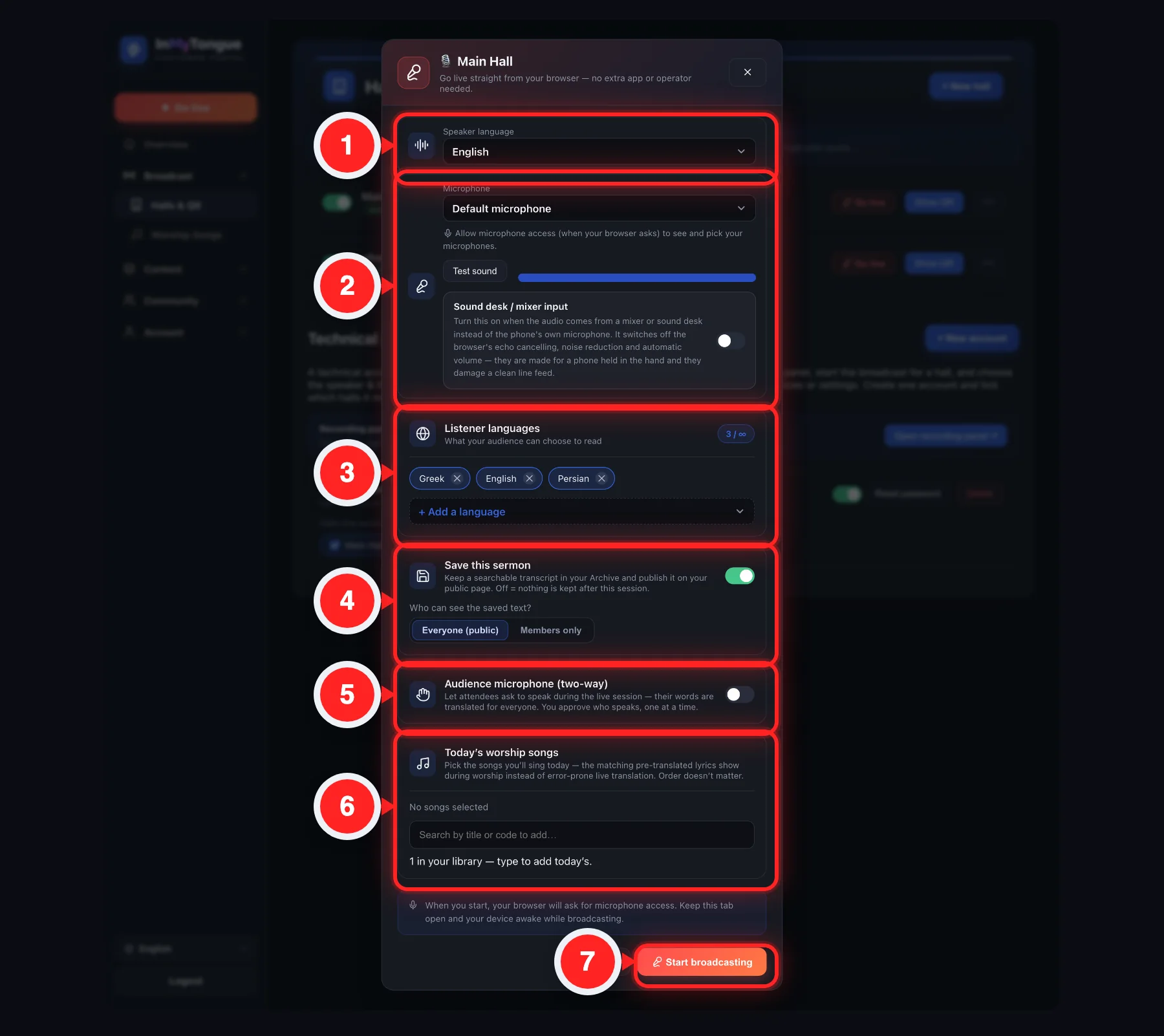
Go Live lets your church or organization broadcast a live translated sermon straight from the browser — no separate app and no microphone-operator login needed. You open it per-hall (from the Halls & QR tab's "Go live" button), pick the speaker language, the listener languages and the microphone, optionally choose to save the transcript, upload to YouTube or pre-load worship songs, then start streaming your mic. Listeners read the live subtitles by scanning that hall's QR code.

Auto-detect |
Default microphone |
English ✕Español ✕فارسی ✕+ Add a language
🎙️ Start broadcasting
The Start screen of the Broadcast modal: speaker-language dropdown, microphone picker, the Listener-languages chip card with its "+ Add a language" search, and the green "Start broadcasting" button.
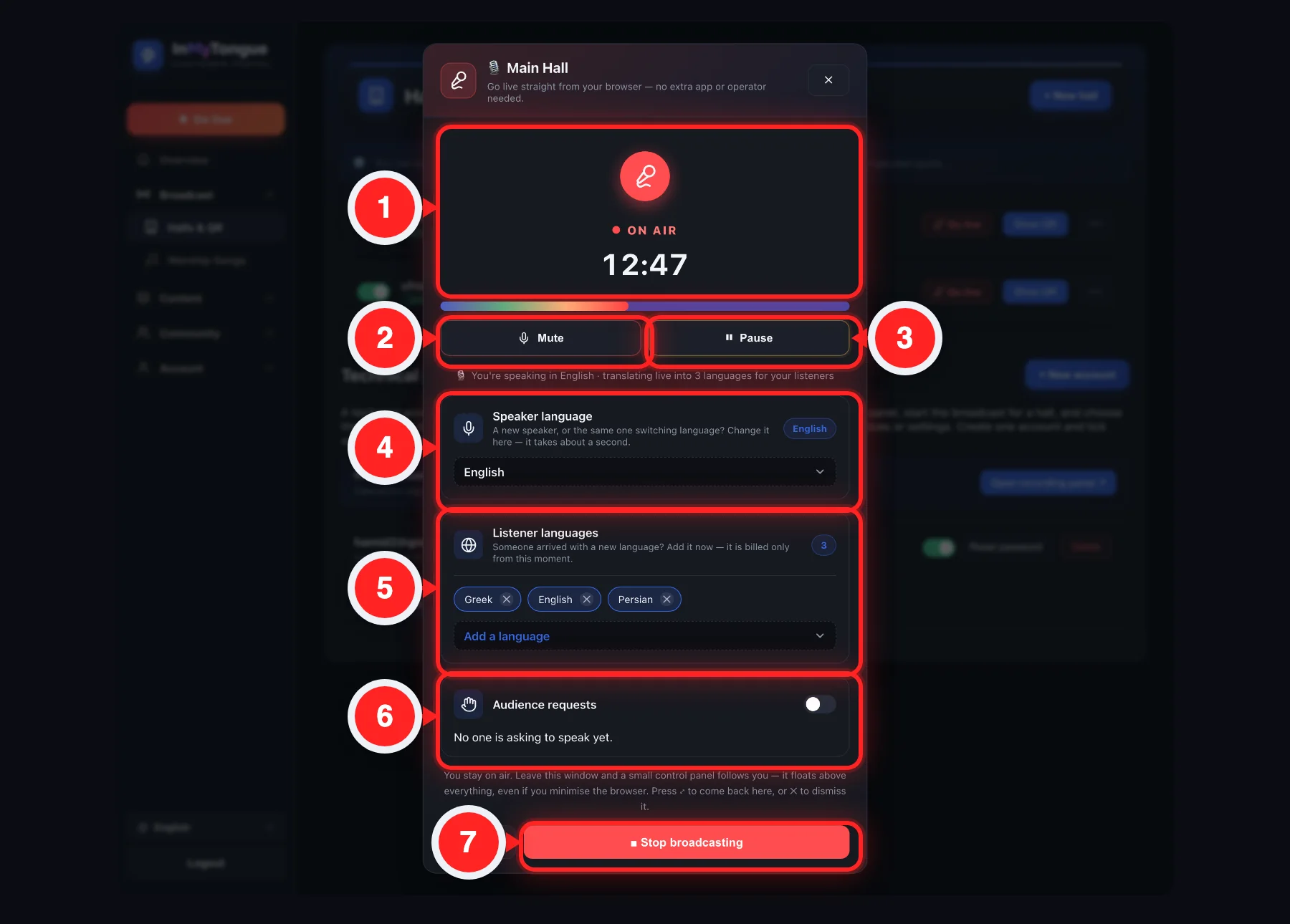
ON AIR
🎙️ 00:00
Pulsing mic ring · audio level
You speak in English · translating into 3 languages
Minimize
■ Stop broadcasting
Save this sermon
Everyone (public) ✓Members only
Upload to YouTube
Amazing Grace ✕Search by title or code…
Left — the ON AIR live screen (pulsing mic ring, red ON AIR dot, running timer, audio meter, the "speaking in / translating into" line, Minimize / Stop buttons). Right — the "Save this sermon" card with its visibility control, the Upload-to-YouTube card and the "Today's worship songs" search-and-chips card.

Every option on the Broadcast modal

Go live (hall card button)On each hall card in the Halls & QR tab, opens the Broadcast modal for that hall — the entry point to going live. Each hall has its own button. If THIS browser is already broadcasting that hall it changes to "🔴 Open live" (reopens your live window); if a previous broadcast is still live on the server after a refresh it becomes "🔴 Resume".
Broadcast (modal title)Header of the modal; once opened the title shows "🎙️ <hall name>" so you know which hall you're going live in. Subtitle reads "Go live straight from your browser — no extra app or operator needed."
✕ (close X, top-right)Closes the Broadcast modal without starting. While you are ON AIR this X is hidden — once live you can only leave via Minimize or Stop broadcasting, so you don't accidentally close mid-broadcast.
Speaker language (dropdown)Sets the language the speaker is talking in, used by speech-to-text. Searchable list of all languages plus "Auto-detect" (default). Changing it auto-saves to the hall immediately (you see a green "Saved ✓" toast); no separate save needed. "Auto-detect" lets the system guess the spoken language.
Microphone (dropdown)Picks which input device to capture when you have more than one mic. Defaults to "Default microphone". Real device names only appear AFTER you grant mic permission; opening the dropdown triggers a one-time permission request. If permission is blocked it shows "🎤 Allow microphone access (when your browser asks) to see and pick your microphones." and only "Default microphone" remains. The whole row hides on browsers without device enumeration.
Listener languages (card with chips)The set of languages your audience can choose to read; shows current languages as removable chips and a count pill "N / max". Subtitle: "What your audience can choose to read". You must add at least one or Start is blocked. The max is your plan's language limit for this hall.
N / max (count pill)Shows how many listener languages are selected versus your plan's maximum for this hall. Purely informational; updates live as you add or remove chips.
Language chip ✕ (per chip)Removes that listener language. Removal auto-saves to the hall. When no languages are selected the card shows "No languages yet — add at least one listener language."
+ Add a language (searchable dropdown)Opens a searchable list (placeholder "Search language…") of all languages not already chosen; picking one adds it as a chip and auto-saves. Disabled and relabeled "Plan limit reached (N)" once you hit your plan's language cap. Only shows languages you haven't already added.
Save this sermon (toggle)When ON, keeps a searchable transcript in your Archive and publishes it on your public page. When OFF, nothing is kept after the session ends. Defaults to OFF every time you open the modal (a per-sermon decision, never remembered). Turning it ON reveals the "Who can see the saved text?" row below.
Who can see the saved text? (segmented control)Two buttons — "Everyone (public)" and "Members only" — set the visibility of the saved transcript. Only visible when "Save this sermon" is ON. Defaults to "Everyone (public)". "Members only" hides the saved sermon from anonymous visitors, showing it only to logged-in members of your church.
Upload to YouTube (toggle)When ON, after the sermon ends it is automatically uploaded as a video to your connected YouTube channel. The entire card is HIDDEN unless your package plus super-admin permission allows YouTube for this hall. Defaults to OFF each time you open the modal.
Today's worship songs (card: search + chips)Pick the songs you'll sing today so the matching pre-translated lyrics are shown during worship instead of error-prone live translation. Search box placeholder "Search by title or code to add…"; selected songs appear as removable chips. Order doesn't matter. Whole card only shows for worship-type organizations (e.g. church/synagogue). Hint shows library size ("N in your library — type to add today's.") or "No songs in your library yet. Add them in the Worship Songs tab." Songs still being translated show "(Translating…)". Selections are NOT remembered between opens.
Worship song chip ✕Removes a song from today's selection. When none selected the area shows "No songs selected".
Mic info barStatic reminder: "When you start, your browser will ask for microphone access. Keep this tab open and your device awake while broadcasting." Informational only.
CancelCloses the modal without going live. Same as the ✕; only available before you start.
🎙️ Start broadcasting (green button)Saves the listener and speaker languages to the hall, creates the live session, requests mic access, and switches the modal to the ON AIR live view streaming your audio. Blocked with "Add at least one listener language first." if none chosen. If you have no active plan it shows a "🔒 No active plan" alert with a "View plans" button. If the hall is already live elsewhere it triggers the takeover warning. If mic is denied it shows "Microphone access was blocked…" and aborts.
Setup message lineStatus/error text under the Start button — shows "Preparing…", save failures, the no-plan alert, or start-failure messages. Not a control; reflects what happened on Start.
ON AIR / timer / mic ring (live view)Live state display: a pulsing mic ring, a red dot with "ON AIR", and an MM:SS timer counting elapsed broadcast time. Timer resumes from the original start time if you reload and resume, not from zero.
Audio level meterA bar that moves with your microphone's input level so you can confirm the mic is picking up sound. If the bar never moves, your selected mic isn't capturing audio.
Live info lineReads e.g. "🎙️ You're speaking in <speaker lang> · translating live into <N languages> for your listeners". Shows "Auto-detect" as the speaker language if you didn't pick a specific one.
Minimize hintNote: "You stay on air even if you close this window — reopen it from the hall's blinking LIVE badge." Informational.
MinimizeCloses the modal window but KEEPS the broadcast running in the background. While minimized, the Halls menu shows a blinking "● LIVE" badge and the hall card shows a clickable LIVE badge / "Open live" button to bring the window back.
■ Stop broadcasting (red button)Ends the broadcast: stops the mic, closes the audio stream and connection, and tells the server to stop the session. Shows a "Broadcast ended." toast and clears the saved-resume state. This is the only clean way to actually end being on air.
Resume bar: "Your broadcast is still live"A banner that appears after a page refresh if a broadcast you started is still live on the server, naming the hall. Only appears when the server confirms your saved session is still live; otherwise the saved state is cleared automatically.
Resume broadcast (resume bar button)Reconnects your mic and stream to the same still-live session after a refresh, reopening the live window. Re-requests mic permission; the timer continues from the original start time.
End it (resume bar button)Ends the still-live session from the banner without reconnecting to it. Stops the session on the server and clears the saved state; refreshes the halls list.
Takeover warning: "This hall is already live"Appears if another broadcast is already running on this hall when you press Start. Explains an existing broadcast (with its start time) will be ended and replaced. Confirm button is "End it & take over" — listeners on the old session must rejoin. Only one broadcast per hall at a time.

Go live (start a broadcast)

  1. Open the Halls & QR tab and find the hall you want.
  2. Click "🎙️ Go live" on that hall's card to open the Broadcast modal.
  3. Set "Speaker language" or leave Auto-detect — it auto-saves.
  4. Optionally pick a specific "Microphone" grant mic access if the browser asks so device names appear.
  5. Add listener languages under "Listener languages", click "+ Add a language" and add at least one (up to your plan's limit).
  6. Optionally set the extras turn on "Save this sermon" and choose Everyone vs Members only; turn on "Upload to YouTube" (if shown); add "Today's worship songs".
  7. Click "🎙️ Start broadcasting" and allow microphone access when prompted.
  8. The modal switches to the ON AIR view with a timer and audio meter — start speaking.
⚠️ Start is blocked until you've added at least one listener language — you'll see "Add at least one listener language first." If you have no active plan you'll get a "🔒 No active plan" alert with a "View plans" button.

Edit listener languages / speaker language

  1. Click "+ Add a language" and pick a language to add it (auto-saved).
  2. Click the ✕ on any language chip to remove it (auto-saved).
  3. Change the "Speaker language" dropdown to update the spoken language (auto-saved, shows "Saved ✓").
  4. No separate Save button is needed these settings are remembered on the hall for next time.
💡 Everything in the modal auto-saves to the hall as you change it, so your speaker and listener languages are ready the next time you go live in that hall.

Save and publish the sermon transcript

  1. Turn ON the "Save this sermon" toggle before starting.
  2. Choose who can see it in the revealed "Who can see the saved text?" row, pick "Everyone (public)" or "Members only".
  3. Start broadcasting as normal.
  4. After the broadcast ends the transcript is kept in your Archive and, if public, published on your public page.
⚠️ "Save this sermon" defaults to OFF every time you open the modal — it's a per-sermon decision and is never remembered. Turn it on each time you want to keep the text.

Minimize then reopen a live broadcast

  1. Click "Minimize" while ON AIR to close the window — the broadcast keeps running.
  2. Watch for the LIVE badges a blinking "● LIVE" badge on the Halls menu and a LIVE badge on the hall card.
  3. Click the hall's "🔴 Open live" button (or the clickable LIVE badge) to bring the live window back.
  4. Continue speaking or click "Stop broadcasting" to end.
💡 You stay on air even if you close the window. The only clean way to actually end being on air is "■ Stop broadcasting".

Resume after a page refresh

  1. Reload the panel while a broadcast is still running.
  2. Look for the banner if your session is still live, "Your broadcast is still live · <hall>" appears.
  3. Click "Resume broadcast" to reconnect the mic to the same session (allow mic again), or "End it" to stop it.
  4. On Resume, the timer continues from where it left off, not from zero.

Take over a hall that is already live

  1. Press "🎙️ Start broadcasting" on a hall that already has a live broadcast.
  2. Read the warning "This hall is already live" shows when the existing broadcast started.
  3. Click "End it & take over" to stop the old session and start yours (or close the warning to cancel).
  4. Listeners on the old session rejoin via the QR code.
⚠️ Only one broadcast per hall at a time. Taking over ends the existing broadcast, and everyone listening to it must rejoin.

End a broadcast

  1. Click "■ Stop broadcasting" in the ON AIR view.
  2. Everything closes the mic, audio stream and connection close and the server session ends.
  3. You see a "Broadcast ended." confirmation and the modal closes.

4Plan & Billing

The Plan & Billing tab is your subscription's home. At the very top a Current plan card shows exactly what you have right now — plan name and status, price, hours left, viewer and language limits, expiry date and your account balance. Below it you control Auto-renewal (renew automatically from your balance, with an optional saved card as a fallback — Apple Pay included), and a Change plan table to upgrade, downgrade or move to Pay-as-you-go. Plan changes are prorated against the time left in your current period and settled with your balance; any card payment happens on Stripe's own secure page — your card number never touches our site.

inmytongue.com/panel/
DashboardPlan & BillingInvoices
📍 We detected you are in Germany. A 19% VAT applies and is added to all purchases — upgrades, renewals and top-ups.
💳
Your current plan — Standard ● active

€49 / 30d · Hours left 12h / 20h · Users 200 · Languages 5 · Expires 12 Jul 2026 · 12d left · Balance €18.00

🔄
Auto-renewal

"Pay renewals automatically" switch (balance first, then your saved card). 💳 Visa •••• 4242 · 7/29 · Remove.

Basic€19 / 30d
Standardcurrent
Pro+€30 now
PAYGAt period end
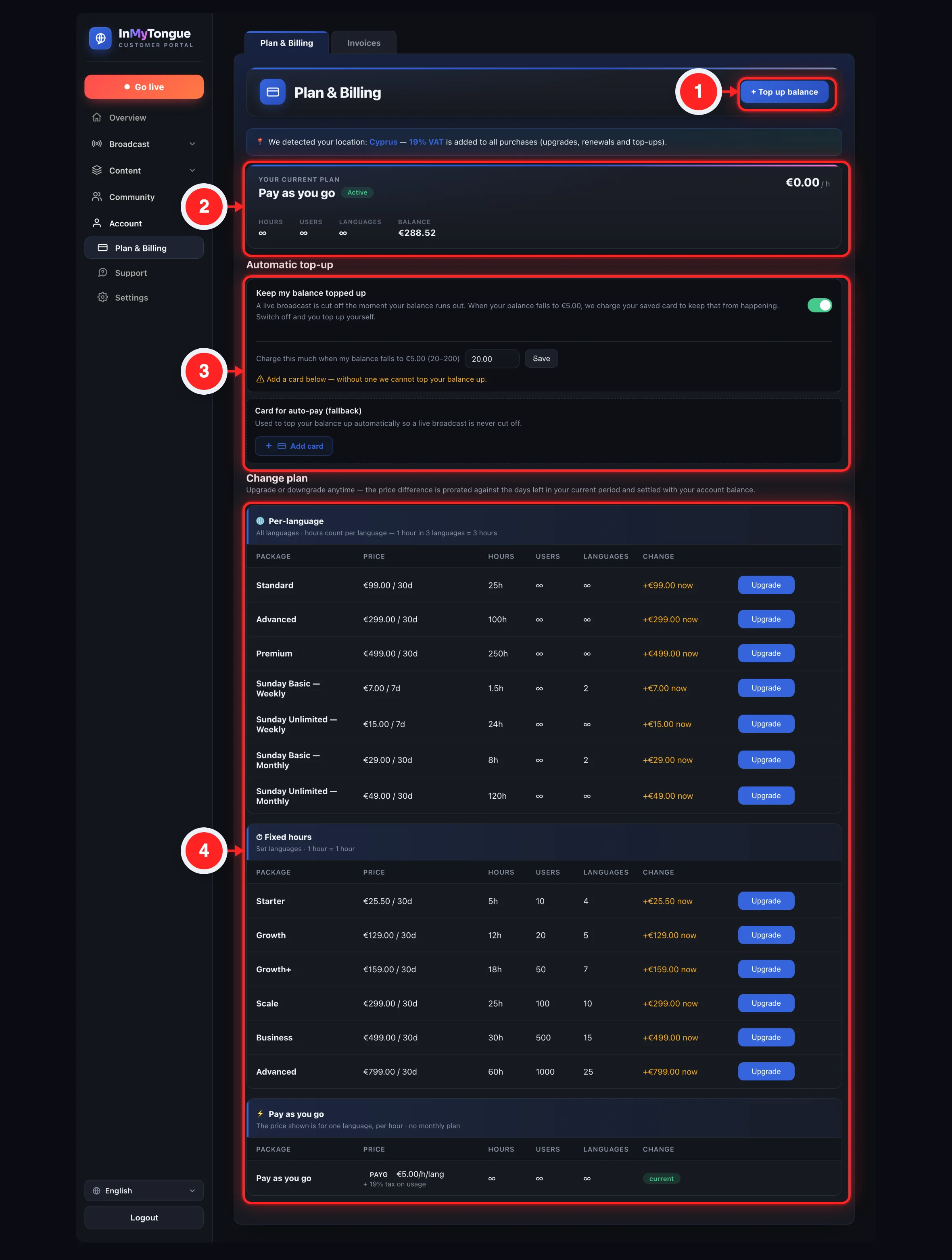
The Plan & Billing tab: tax notice, the Current plan card (name, status, price, hours left, limits, expiry, balance), the Auto-renewal card with its saved card, and the Change plan comparison table with Upgrade/Downgrade/Switch buttons per row.

Everything on this tab

Plan & Billing (heading)The page title for the tab.
+ Top up balance (button)Opens the Top up balance modal so you can add prepaid credit to your account. Top-up does NOT credit your balance immediately — it issues an invoice you must pay at the gateway; balance is credited only after payment.
Tax notice bannerAuto-detected from your IP. If your country charges VAT it shows "We detected you are in <country>. A <pct>% VAT applies and is added to all purchases — upgrades, renewals and top-ups." If no VAT applies it shows the "No VAT applies" variant. Hidden if your country is unknown. VAT is added on top of plan/top-up amounts — the number shown in the plans table is pre-tax. The banner is read-only.
Current plan card (top of the tab)A branded card showing exactly what you have right now: the plan name with a colored status badge (green "Active", amber "Suspended", red "Expired"), the price / period (e.g. "€49 / 30d", or a per-hour rate for PAYG), and a row of facts — Hours left (remaining vs total, e.g. "12h 30m / 20h", language-weighted, the same figure as the dashboard), Users (max concurrent listeners), Languages (max simultaneous), Expires (date + days left, turning amber under 7 days) and your Balance. Read-only. PAYG plans show "∞" for hours/users/languages and no expiry. Any per-customer limit overrides set by support are reflected here. If you have no plan it shows a "No active plan" card with just your balance.
Auto-renewal cardOne master switch — "Pay renewals automatically". ON = when a renewal is due it is paid automatically, first from your account balance, and if the balance isn't enough, from your saved card. OFF = nothing is ever auto-charged (neither balance nor card) and you pay each invoice yourself. Turning it ON immediately settles any due invoices it can. This is the single control — there is no separate card switch; the saved card is used as a fallback only while this is ON.
Saved card / "Add card" / "Remove"Inside the Auto-renewal card. If no card is saved you see a compact "+ 💳 Add card" button; clicking it sends you to Stripe's own secure page to enter (or pick with Apple Pay) a card — the number never reaches us. Once saved it shows "💳 Visa •••• 4242 · 7/29" with a red Remove button. Only appears when card payments are enabled for your account. Saving a card never charges you — it is stored only for automatic renewals. Removing it turns off the card fallback (balance-only).
Pending-upgrade bannerAppears only if you started an upgrade but haven't paid its difference invoice yet. Shows "⏳ Upgrade to <name> is pending — pay <amount> to apply it" with two buttons: Pay now and Cancel upgrade. Until you pay, your plan does not change — you stay exactly on your current plan. "Pay now" reopens the difference-invoice payment; "Cancel upgrade" deletes the unpaid invoice and you simply stay on your current plan (nothing was charged).
Scheduled Pay-as-you-go bannerAppears only if you have already scheduled a switch to a PAYG plan. Shows "⏳ Switching to <name> on <date>" with a "Cancel switch" button. Only shown when a PAYG switch is pending at period end; the switch happens automatically on that date with no carry-over of hours or credit.
Cancel switch (button)After a confirm prompt ("Keep your current plan and cancel the scheduled switch to Pay-as-you-go?"), cancels the scheduled PAYG switch so you stay on your current paid plan. Requires confirmation; only exists while a PAYG switch is scheduled.
Technician plan-change request bannerAppears only if your microphone operator/technician requested a plan switch. Shows "⏳ <who> requested to switch to <name>" plus the prorated cost (e.g. "(+€X now)" for an upgrade or "(+€X credit)" for a downgrade), with Reject and Approve & pay buttons. Only the owner can approve/pay — the technician cannot change billing. "<who>" falls back to "Your technician" if no name.
Reject (button, technician request)After a confirm ("Reject this plan-change request?"), declines the technician's requested plan change. Requires confirmation.
Approve & pay (button, technician request)Opens the Confirm purchase modal with the prorated line, then on confirm applies the change (or opens the difference-invoice payment for upgrades). Same flow as a normal upgrade — may require paying a prorated difference invoice.
Change plan (section heading)The heading introducing the plans comparison table.
Change plan hintExplains: "Upgrade or downgrade anytime — the price difference is prorated against the days left in your current period and settled with your account balance." Read-only informational text.
Plans table — Package columnLists each available package name. A free plan is hidden entirely if you have already used your free plan and are not currently on it (free plan = once per account).
Plans table — Price columnShows "<price> / <days>d" for subscriptions, "Free" for zero-price plans, or a "PAYG" badge plus the per-hour rate (e.g. "€X/h", "€X/h + €Y/lang", or "€Y/h/lang") for pay-as-you-go plans. PAYG price is metered per hour (and optionally per language); subscription price is the fixed periodic charge before tax.
Plans table — Hours columnThe allowed broadcast hours for that plan: "Xh" (or "Xm" for under one hour); shows "∞" for PAYG (unlimited, metered).
Plans table — Users columnMax concurrent listeners for the plan; "∞" for PAYG or when the limit is 0 (unlimited).
Plans table — Languages columnMax simultaneous broadcast languages; "∞" for PAYG.
Plans table — Change columnShows the cost/effect of switching to that row: a "current" badge for your current plan; "+€X now" (amber) for an upgrade; "+€X credit" (green) for a downgrade; "no change" if the price is equal; "At period end" for switching to PAYG; "—" otherwise. Upgrade amount is charged now from balance; downgrade amount is credited to balance. PAYG switches give NO credit and apply only at period end.
Plans table — action button (Upgrade / Downgrade / Switch / Choose)Per-row button: the label is "Upgrade" or "Downgrade" depending on proration, "Switch" for PAYG or equal-price, or "Choose" when you have no current plan. Opens the Confirm purchase modal. The current plan's row shows the "current" badge and has no button.
Top up balance (modal title)The header of the Top up balance modal.
Amount (input)A numeric field (min 1, step 1, placeholder "Amount in your currency") where you enter how much credit to add, in your account currency. Entered as a whole currency amount; the app multiplies by 100 to cents. Zero or negative is rejected.
Top up hintStates: "An invoice is issued for this amount. Pay it at the secure payment gateway — your balance is credited only after payment."
Cancel (button, Top up modal)Closes the Top up modal without doing anything.
Continue to payment (button, Top up modal)Creates a top-up invoice, closes the modal, switches you to the Invoices tab, and opens the payment-method picker for that invoice. Balance is added only after you actually complete payment at the gateway.
Confirm — <name> (modal title)The header of the Confirm purchase modal, set to the package you're switching to.
Confirmation lineDescribes the switch: for PAYG, "Your current plan stays active until <date>. After that it switches to <name> (Pay-as-you-go). No remaining hours or credit are carried over." Otherwise "Switch to <name>? The prorated difference is settled with your balance." plus "(+€X now)"/"(+€X credit)" and a fresh-period note when applicable. The fresh-period note warns the new plan starts a brand-new N-day period from today and unused time on the current plan is credited (no carry-over).
Archive-moved hintStates: "Recording & archive options now live in Settings — they are not changed by switching plans." Reminds you that changing plans does not affect recording/archive settings.
Cancel (button, Confirm purchase modal)Closes the Confirm purchase modal without changing your plan.
Confirm & apply (button)Submits the plan change. A PAYG switch is scheduled for period end; a downgrade credits your balance immediately; an upgrade either applies immediately (charged from balance) or opens the difference-invoice payment if extra payment is needed. If you try to re-select a free plan you already used, it fails with "The free plan can be used only once. Please choose a paid plan."

Top up your account balance

Amount in your currency |
Top up balance modal: Amount field with the hint that an invoice is issued and balance is credited only after payment, plus Cancel and Continue to payment buttons.
  1. Click "+ Top up balance" top right of the tab, to open the Top up balance modal.
  2. Enter the amount in the "Amount" field, in your currency (minimum 1).
  3. Click "Continue to payment" an invoice is created and you are taken to the Invoices tab with the payment-method picker open.
  4. Pay the invoice at the secure gateway your balance is credited only after the payment succeeds.
⚠️ A top-up never adds credit straight away. It creates an invoice — your balance only goes up once that invoice is actually paid at the gateway.

Upgrade your plan

Switch to "Pro"? The prorated difference is settled with your balance. (+€30 now)
Confirm — Pro modal showing the prorated difference line and the Confirm & apply button for a plan switch.
  1. Find a more expensive package in the Change plan table; its Change column shows "+€X now" in amber.
  2. Click "Upgrade" on that row.
  3. Review the Confirm — <name> modal it shows the prorated difference and any fresh-period note.
  4. Click "Confirm & apply" if your balance covers the difference, the upgrade applies immediately and the amount is charged from balance. Otherwise a prorated difference invoice opens — your balance is applied and you pay the remainder by card (on Stripe's secure page, Apple Pay included), PayPal or crypto.
  5. The upgrade applies only after that invoice is paid until then your plan does not change. If you close the payment without paying, a "⏳ Upgrade to … is pending" banner stays at the top so you can Pay now later or Cancel upgrade (see below).
💡 An unpaid upgrade never changes your service. You keep your current plan until the difference is actually paid — and you can cancel the pending upgrade at any time with no charge.

Cancel a pending upgrade

  1. Find the "⏳ Upgrade to … is pending" banner at the top of the Plan & Billing tab (it appears when an upgrade's difference invoice is unpaid).
  2. Click "Cancel upgrade" and confirm the prompt.
  3. You stay on your current plan the unpaid difference invoice is deleted and nothing is charged — your service was never switched, so there is nothing to undo.

Downgrade your plan

  1. Find a cheaper subscription package in the Change plan table; its Change column shows "+€X credit" in green.
  2. Click "Downgrade" on that row.
  3. Review the Confirm modal it shows the credit amount and that it starts a fresh period with unused time credited.
  4. Click "Confirm & apply" the downgrade applies and the prorated amount is credited to your account balance.

Switch to a Pay-as-you-go plan

  1. Find a PAYG package the Price column shows a "PAYG" badge; its Change column shows "At period end".
  2. Click "Switch" on that row.
  3. Read the Confirm modal it explains your current plan stays active until the period end date, then auto-switches to PAYG with no carry-over of hours or credit.
  4. Click "Confirm & apply" the switch is scheduled; a "⏳ Switching to <name> on <date>" banner appears.
⚠️ A Pay-as-you-go switch gives no credit and only takes effect at the end of your current period. Any remaining hours or credit are not carried over.

Cancel a scheduled PAYG switch

  1. Click "Cancel switch" on the "⏳ Switching to … on <date>" banner.
  2. Confirm the prompt "Keep your current plan and cancel the scheduled switch to Pay-as-you-go?"
  3. You stay on your current paid plan the scheduled switch is cancelled.

Approve or reject a technician's plan-change request

  1. Read the request banner "⏳ <technician> requested to switch to <name>" — decide whether to allow it.
  2. To decline: click "Reject" then confirm "Reject this plan-change request?"
  3. To accept: click "Approve & pay" review the Confirm modal, then click "Confirm & apply" — proceeding through the same upgrade/downgrade/payment flow as a normal switch.
💡 Only you, the owner, can approve and pay for a plan change. Your microphone operator or technician can request a switch, but billing always stays in your hands.

Turn automatic renewal on or off

  1. Find the Auto-renewal card just under your Current plan card.
  2. Toggle "Pay renewals automatically" ON = renewals are paid for you (balance first, then your saved card); OFF = nothing is auto-charged and you pay each invoice yourself.
💡 With auto-renewal ON, the moment a renewal is due we take it from your balance — and only if the balance can't cover it do we fall back to your saved card. With it OFF, nothing is ever charged without you.

Save a card for automatic renewals (Apple Pay supported)

+ 💳 Add card → Stripe
The "+ Add card" button in the Auto-renewal card sends you to Stripe's own secure page; on an Apple device the Apple Pay button appears there automatically.
  1. Click "+ 💳 Add card" inside the Auto-renewal card (shown only when card payments are enabled for your account).
  2. Enter your card on Stripe's secure page you are redirected to Stripe — on an iPhone/Mac in Safari the Apple Pay button appears automatically. Your card number is typed on Stripe, never on our site.
  3. You're brought back and the card is saved shown as "💳 <brand> •••• <last4> · <exp>". Saving a card never charges you.
  4. To remove it, click "Remove" after that, auto-renewal uses your balance only.
⚠️ Your card is stored on Stripe for off-session renewals only — we never see or keep your card number. It is charged only when a renewal is due and your balance can't cover it.

What happens when your hours or days run out

Your plan period ends when either the date runs out or your hour bucket reaches zero — whichever comes first. We try hard not to interrupt you:

  1. At ~80% of your hours used you get a one-time heads-up email and an amber banner on your dashboard, so the limit never takes you by surprise.
  2. Auto-renewal ON — renew from balance the instant you hit the limit (even as a broadcast is starting), the same plan renews automatically from your balance — a fresh period and a fresh hour bucket — and you keep going. Your balance is never taken below zero.
  3. Balance short — your saved card if you saved a card, the renewal is charged to it (off-session, on Stripe).
  4. Neither covers it — Pay-as-you-go fallback rather than cutting you off, your account can switch to Pay-as-you-go and keep broadcasting, metered from your prepaid balance (until that balance reaches zero).
  5. Auto-renewal OFF, or nothing left to charge — service pauses broadcasting stops at the limit. Nothing is lost — top up your balance or pay the renewal invoice and you're back. Turn Auto-renewal ON to avoid this entirely.
⚠️ Unused hours and days never roll over — each new period starts fresh. Your prepaid balance is separate and always stays with you.

5Invoices

The Invoices tab — labelled "My Invoices" — lists every billing invoice for your church or organization: subscription/plan charges, upgrade-difference (proration) charges, and account top-up charges. From here you can pay any unpaid invoice. Paying applies your account balance first; if money is still owed, it opens a payment-method chooser — pay by card (on Stripe's own secure page, with Apple Pay on Apple devices), PayPal, or crypto. Your card number is entered on Stripe and never touches our site.

inmytongue.com/panel/invoices
OverviewInvoicesProfile
#1042STARTER PLAN · UPGRADE DIFF
€12.30(+€2.30 TAX) · OVERDUE
#1043💳 ACCOUNT TOP-UP
€50.00UNPAID
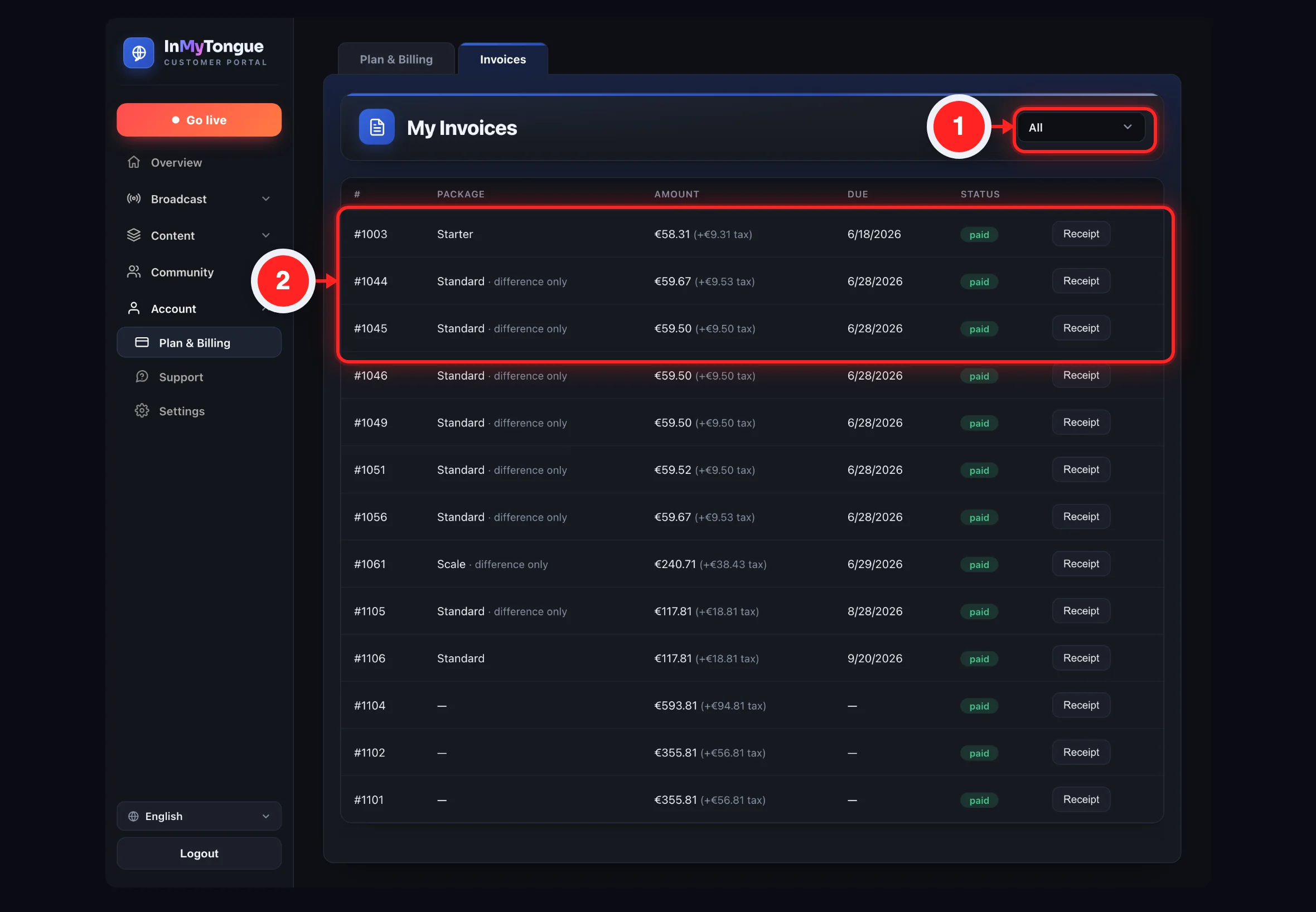
The Invoices table with the Unpaid / All / Paid / Canceled filter dropdown, per-row status badges, and Pay buttons.
💡 The filter always opens on Unpaid, so your paid and canceled history is hidden until you change it. Note that All still leaves out canceled invoices — those show up only under the Canceled filter.

Every option on this screen

My Invoices (heading)Page title at the top of the tab. Static text only.
Filter dropdown (Unpaid / All / Paid / Canceled)The select at the top-right that chooses which invoices the table shows. Defaults to "Unpaid" every time you open the tab. Unpaid = not paid and not canceled; Paid = paid and not canceled; Canceled = only canceled invoices; All = every active invoice but still excluding canceled ones. "All" does NOT include canceled invoices — they appear only under "Canceled". Changing the filter re-fetches and re-renders the list immediately.
Column "#"Shows the invoice number prefixed with "#". Shows "#—" if the invoice has no number yet.
Column "Package"Describes the invoice. A top-up invoice shows "💳 Account top-up". Otherwise it shows the package/plan name, and an upgrade/proration invoice appends "· upgrade diff". Shows "—" if no package name is present. The "· upgrade diff" note marks a plan-change difference charge, not a normal monthly invoice.
Column "Amount"Shows the invoice total = net + tax, in the invoice's currency. If there is tax, it adds a small note "(+<tax> tax)". The amount already INCLUDES the tax; the "(+… tax)" is just a breakdown of how much of that total is tax.
Column "Due"Shows the invoice due date. If the invoice is unpaid, not canceled, and past due, the Status badge becomes "overdue".
Column "Status"A colored badge: "canceled" (grey) if canceled, "paid" (green) if paid, "overdue" (red) if unpaid and past due, otherwise "unpaid" (amber). Status is worked out in your browser from the paid/canceled/due-date fields; "overdue" is derived, not separately stored.
Pay (row button)Appears in the last column only for invoices that are NOT paid and NOT canceled. For a normal/plan/proration invoice it opens the "Pay invoice" modal (balance-first flow). For a top-up invoice it skips that modal and goes straight to the payment-method/gateway flow. Paid and canceled invoices show no button. Top-ups never apply account balance — they go directly to the card/PayPal/crypto checkout, because their job is to ADD funds to your balance.
Empty-state row "No invoices."Shown in place of rows when the current filter matches nothing.
Pay invoice — modal titleHeader of the Pay-invoice dialog. Reads "Pay invoice #<n>" when the invoice has a number, otherwise just "Pay invoice".
Pay invoice — description lineMuted subtitle under the title. Shows the invoice description, or "upgrade diff" for a proration invoice, or the package name.
Amount (modal row)The net (pre-tax) amount of the invoice.
VAT / tax (modal row)The tax portion of the invoice. The HTML default label is "VAT" but the active English text is "VAT / tax". This whole row is hidden when the invoice has zero tax.
Total (modal row)Net + tax — the full amount of the invoice.
Account balance applied (modal row)How much of your prepaid balance is being put toward this invoice, shown as a negative "− <amount>". Equals the lesser of your balance and the total. The modal re-fetches your live balance when it opens, so this figure reflects your current balance, not a cached value. Shows "0.00" (not negative) if no balance is applied.
Amount to pay now (modal row)The remaining amount you must pay through a gateway after balance is applied = total − applied. If your balance fully covers the invoice, this is zero.
Hint line (modal)Explains the situation. If something is still due: "Your balance (<applied>) is applied to this invoice. Pay the remaining amount by card, PayPal or crypto." If fully covered: "This will be paid in full from your account balance."
Cancel (Pay-invoice modal)Closes the Pay-invoice modal without doing anything. Same as the ✕ in the corner.
✕ close (any modal)Closes that modal (Pay-invoice, Choose-method, or Secure-payment) with no action.
Pay button (Pay-invoice modal, dynamic label)The primary action. Its label changes: when an amount is still due it reads "Pay <due>"; when balance covers it fully it reads "Pay <total> from balance". If nothing is due, it pays the invoice entirely from balance and on success shows "Invoice paid. Thank you!" (or "Paid — your service has been reactivated." if it un-suspended your service). If an amount is due, it closes the modal and starts the gateway payment for only the remaining "due" amount. Balance-pay can fail with "Not enough balance. Please top up first." if the balance changed; other failures show "Payment failed: <error>". When there is a remaining due, only the DUE portion is charged at the gateway — the balance portion is consumed automatically.
Choose payment method — modalAppears only when MORE THAN ONE online payment method is enabled by the admin. Shows "You pay <amount>" and a list of method buttons. If exactly one method is enabled it is auto-selected and this chooser is skipped. If NO methods are configured at all, the system falls straight to the card gateway.
You pay <amount>Read-only display of the amount being charged in this step (shown in both the method chooser and the card gateway). For a partial invoice payment this is the remaining due amount, not the full invoice total.
Method option: Credit / debit cardA selectable 💳 row (Visa, Mastercard). Choosing it sends your browser to Stripe's own secure checkout page to pay — on an iPhone/Mac in Safari the Apple Pay button appears there automatically. Only shown if "card" is enabled. Your card details are entered on Stripe, never on our site. When you return, we confirm the payment and settle the invoice automatically.
Method option: PayPalA selectable 🅿️ row. Choosing it requests a redirect URL and sends your browser to PayPal to finish payment. Only shown if PayPal is enabled. On return, the app captures the order and shows a success/settled toast; a cancelled return just clears the URL with no charge.
Method option: CryptocurrencyA selectable 🪙 row. Choosing it requests a redirect URL and sends your browser to the crypto checkout. Only shown if crypto is enabled. On return the app shows an info toast that the crypto payment is pending (not yet confirmed).
Stripe secure checkout page (card)When you choose Card, you leave our panel and land on Stripe's hosted payment page (the address bar shows checkout.stripe.com). You enter your card there — or tap Apple Pay / Google Pay if your device offers it — and confirm. This is a real, live payment page run by Stripe (PCI-secure). We never see or store your card number. A "Cancel" / back link on Stripe returns you with no charge.
Return & automatic confirmationAfter you pay (or cancel) on Stripe you are sent back to your panel. On a successful return we verify the payment and settle the invoice automatically (and auto-clear any other invoices your topped-up balance now covers), then show a success toast. Settlement does not depend on you staying on the page — even if you close the tab, the payment is confirmed in the background.

View and filter your invoices

  1. Open the Invoices tab from the sidebar — it loads showing "Unpaid" invoices by default.
  2. Open the filter dropdown (top-right) and pick Unpaid, All, Paid, or Canceled.
  3. The table re-loads to show matching invoices. Remember: "All" still excludes canceled invoices — use "Canceled" to see those.
  4. Read each row — # (number), Package/description, Amount (incl. tax), Due date, and Status badge (paid / unpaid / overdue / canceled).
€10.00
€2.30
€12.30
− €5.00
€7.30
Pay €7.30
The "Pay invoice" modal: Amount / VAT / Total / Account balance applied / Amount to pay now, with the dynamic Pay button.

Pay a plan / upgrade invoice from your balance

  1. Click "Pay" on the unpaid invoice to open the "Pay invoice" modal.
  2. Review the breakdown — Amount, VAT/tax (if any), Total, Account balance applied, and Amount to pay now.
  3. If your balance covers it, the button reads "Pay <total> from balance" — click it.
  4. Done — you see "Invoice paid. Thank you!" (or "Paid — your service has been reactivated." if it un-suspended your service) and the list refreshes.

Pay partly from balance, remainder by card / PayPal / crypto

  1. Click "Pay" on the unpaid invoice; the modal shows balance applied and a non-zero "Amount to pay now".
  2. Click "Pay <due>" — the invoice modal closes and the payment flow starts for only the remaining due amount.
  3. Choose a method — if more than one is enabled, the "Choose payment method" dialog appears; pick Card, PayPal, or Cryptocurrency. (One method = chosen automatically; none configured = card gateway opens directly.)
  4. Pay — you are redirected to the provider's secure page (Stripe for card, where Apple Pay also appears; or PayPal / crypto) and returned to the Invoices tab afterward, where the payment is confirmed automatically.
  5. Success — a toast confirms payment (and notes any other invoices auto-settled from your topped-up balance), and the list refreshes.
The "Choose payment method" dialog (You pay €7.30) listing Card, PayPal, and Cryptocurrency. Card sends you to Stripe's secure page (Apple Pay included); PayPal and crypto redirect to their own checkouts.

Pay an account top-up invoice

  1. Spot the top-up — it shows "💳 Account top-up" as its description.
  2. Click "Pay" — this skips the balance-first modal and goes straight to the payment-method/gateway flow.
  3. Choose a method (if prompted) and pay by card (Secure payment dialog) or via PayPal/crypto redirect.
  4. Success — "Payment successful — your balance has been topped up." (plus any auto-settled invoices), and the list refreshes.
💡 A top-up can't be paid from your balance — its whole purpose is to add funds to that balance, so it always goes straight to card / PayPal / crypto.

Handle a card-payment error

  1. Enter your card on Stripe's page after choosing Card you pay on Stripe (or with Apple Pay).
  2. If the card is declined or invalid Stripe shows the message right there on its own page (wrong number, expired, insufficient funds, bank decline, etc.) and lets you try another card.
  3. Cancel or finish — complete the payment to return with the invoice settled, or use Stripe's back/cancel link to return with no charge and try again later.
💳 Card payments run on Stripe — a real, secure, PCI-compliant payment page. Apple Pay appears automatically on Apple devices in Safari. Your card number is handled entirely by Stripe and never reaches our servers.

6Worship Songs

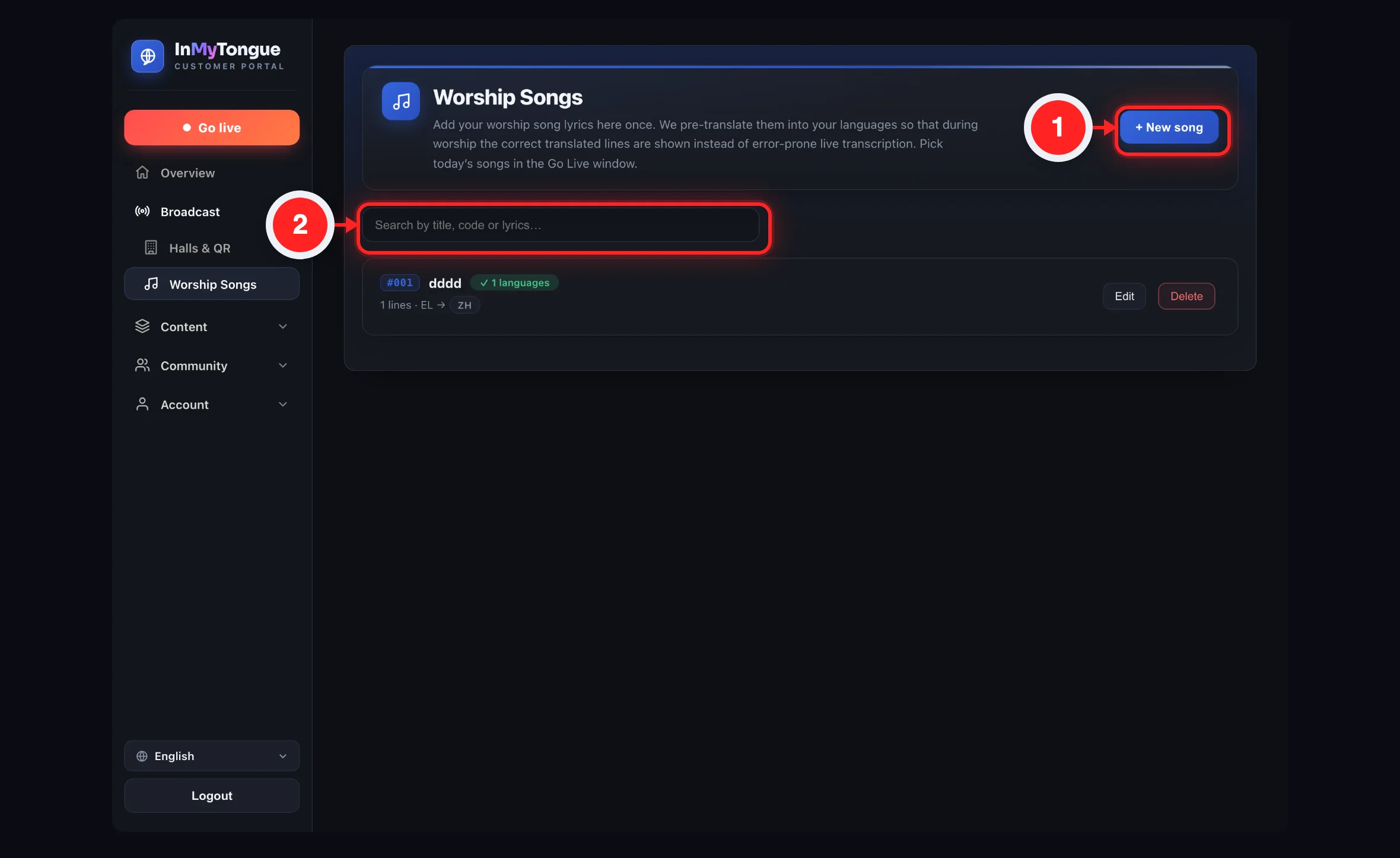
A library where your church adds its worship song lyrics once. The platform pre-translates every line into your active languages and caches them, so during worship the correct pre-translated lines are shown to attendees instead of relying on error-prone live transcription. You then pick the actual songs for each service separately in the Go Live window.

💡 This whole tab only appears if your organization's type has the Worship Songs feature switched on by us. If you don't see it, just contact support and we'll enable it.
inmytongue.com/panel/
OverviewWorship SongsGo Live
#123CODE
Amazing GraceTITLE
✓ 3 languagesTRANSLATED

12 lines · EN → ES FR DE

Re-translateEditDelete
A worship song card: code badge, title, the green "✓ 3 languages" status, the "12 lines · EN → ES FR DE" summary, and the Re-translate / Edit / Delete buttons.
Amazing Grace
English |
Paste the full song lyrics here…
Save songCancel
The New worship song modal: title field, searchable Original language dropdown (defaults to English), and the large Lyrics textarea with Save song / Cancel.

Everything on this screen

Worship Songs (page title)The heading for the tab. The tab only shows if your org type has the worship-songs feature enabled. While that's still loading it's shown anyway so a network hiccup doesn't hide it; once features load without it, the tab is hidden and you'll see the Overview instead.
+ New songOpens the New worship song modal with empty fields so you can add a song.
Intro textThe explanatory paragraph: "Add your worship song lyrics here once. We pre-translate them into your languages so that during worship the correct translated lines are shown instead of error-prone live transcription. Pick today's songs in the Go Live window." Static text, not clickable.
Search songs by title…A search box that filters the song list. Typing reloads results after a short pause (about a quarter second). Search is server-side and matches the title, the code AND the lyrics — not just the title. Clearing the box reloads the full list.
Song listThe area that shows one card per song. Shows "(loading…)" while fetching, "No worship songs yet — add your first one so we can pre-translate it." when empty, or "Operation failed" if something went wrong.
Song code badge (#code)A short reference code (e.g. #123) shown on each card, handy for picking songs quickly in Go Live. Only shown once the server has assigned a code.
Song titleThe song's title shown in bold on its card.
Status badge — Translated / ✓ N languagesGreen badge when the song is fully translated. Shows "✓ N languages" when the server reports how many, otherwise just "Translated".
Status badge — Translating…Yellow badge shown while pre-translation is still in progress. The list does not auto-refresh — reload the tab or run a search to see a song move from Translating… to Translated.
Status badge — Translation failedRed badge shown when translation failed. When in this state a Re-translate button also appears on the card.
Line / language summaryMuted text under the title, e.g. "12 lines · EN → ES FR DE" — the line count, the source language code, and a chip per target language. The arrow and chips only appear if the song has target languages.
Re-translateA card button that retries pre-translating the song, then reloads the list. Appears only on songs that failed — it is not a general "refresh translations" button for healthy songs.
EditA card button that opens the modal pre-filled with this song's title, original language and lyrics for editing.
DeleteA red card button that removes the song after you confirm 'Delete "<title>"?'. Uses the in-app confirm dialog; on failure it shows an alert with the error. Deletion is permanent — there's no undo.
Modal titleThe modal heading: "New worship song" when adding, "Edit worship song" when editing (becomes "Edit worship song · #<code>" if a code exists).
✕ closeCloses the song modal without saving.
Song title (in modal)Required text box for the title, up to 200 characters. If left blank, Save does nothing except put your cursor back here — no error message. The title is trimmed before saving.
Original languageA searchable dropdown for the song's source language. Defaults to English and is built from the same full language list used elsewhere (e.g. Go Live). Resets to "en" each time you open a new song, and to the saved value when editing; falls back to "en" if unset.
LyricsA large 12-row box to paste the full lyrics, one line per line. Placeholder: "Paste the full song lyrics here…". Each line is translated as its own unit, so line breaks matter. Lyrics are sent exactly as typed (not trimmed).
Lyrics noteHint under the textarea: "After saving, we automatically translate every line into your active languages and cache it. You can come back and edit anytime." Static text.
CancelCloses the song modal without saving.
Save songSubmits the form — creates the song when adding or updates it when editing, then closes the modal and reloads the list. Sends the title, source language and lyrics. Shows "Saving…" while working and "Operation failed: <message>" inline if it fails. Translation into your languages happens automatically afterwards, so the song may first appear as Translating…
Status text (in modal)The inline message area that shows "Saving…" or a failure message during and after a save.

Add a new worship song

  1. Open the Worship Songs tab.
  2. Click "+ New song" to open the New worship song modal.
  3. Type the Song title required, up to 200 characters.
  4. Pick the Original language from the searchable dropdown; it defaults to English.
  5. Paste the full lyrics into the Lyrics box, one line per line.
  6. Click "Save song" the modal shows "Saving…", then closes and the list reloads.
  7. Wait for translation the song first shows "Translating…", then "Translated" / "✓ N languages" once done.
⚠️ The list doesn't refresh on its own. Reload the tab or run a search to see a song move from "Translating…" to "Translated".

Edit an existing song

  1. Find the song in the list, using the search box if you like.
  2. Click "Edit" on its card the modal opens pre-filled with the title, original language and lyrics.
  3. Change the title, language and/or lyrics.
  4. Click "Save song" the platform re-translates the changed lines and the list reloads.

Delete a song

  1. Locate the song card.
  2. Click the red "Delete" button.
  3. Confirm the prompt 'Delete "<title>"?'.
  4. The song is removed and the list reloads.
⚠️ Deletion is permanent — there is no undo.

Retry a failed translation

  1. Find a song showing the red "Translation failed" badge.
  2. Click "Re-translate" on that card.
  3. The platform retries and the list reloads — the status goes back to Translating…

Search the library

  1. Type into the "Search songs by title…" box.
  2. Wait a moment the list reloads with matches on title, code or lyrics.
  3. Clear the box to show all songs again.

Use songs during a service

  1. Add and pre-translate songs here once they're stored in your library.
  2. Open the Go Live window and pick today's songs there — search by title or code; order doesn't matter.
  3. During worship the matching pre-translated lines are shown to attendees instead of live transcription.

7Archive (sermons)

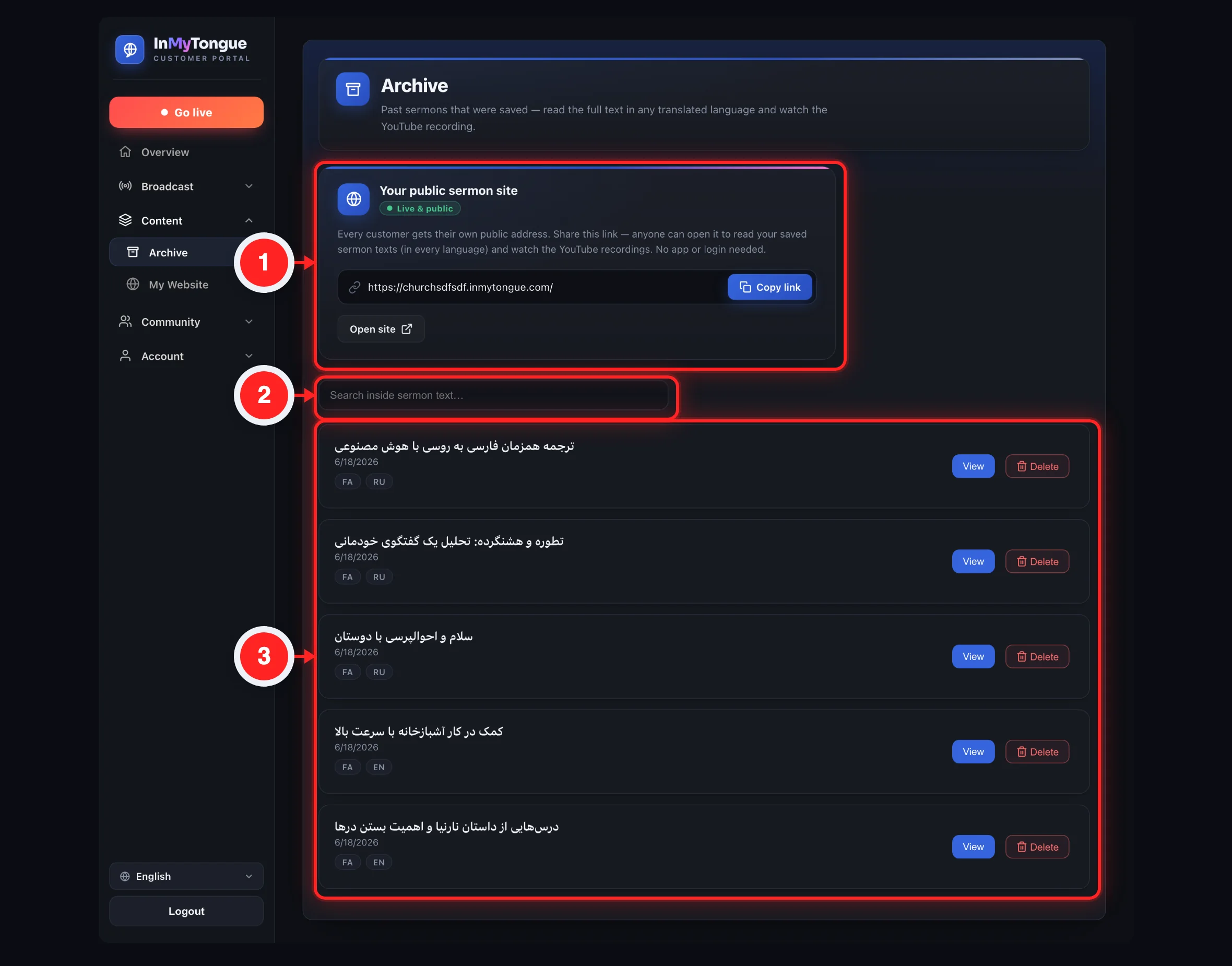
The Archive tab is where your church reviews its saved past sermons. It shows a shareable link to your church's public sermon website, a search box to find sermons by their text, and a list of every archived session. Opening a sermon shows its YouTube recording (if any), its translated full text in each available language, and a control to set whether the saved text is public or members-only.

Live & public
grace.inmytongue.com |
The "Your public sermon site" card with the read-only link field, Copy link, and Open site buttons.
inmytongue.com/panel/
LiveArchiveMembers
Sunday Morning Service
Started 22 Jun 2026
ENFA▶ YouTube
View
A sermon card in the list showing title, date, language chips and the ▶ YouTube chip with a View button.
Sunday Morning Service
Who can see the saved text?
Everyone (public)
Members only
▶ YouTube recording
EN ★FA
Full sermon text…
The sermon dialog: embedded video, the public/members-only segmented toggle, language chips, and the full text.
Archive (heading)Page title for the tab. The intro line reads: "Past sermons that were saved — read the full text in any translated language and watch the YouTube recording."
Your public sermon site (card)A panel describing your church's own public address where saved sermon texts (in every language) and YouTube recordings can be read by anyone with no app or login. It shows a "Live & public" badge. The badge is static text — it does not check whether the site is actually reachable; it always says Live & public.
Public site link (read-only field)Shows your public site URL, built from your church's slug as https://<slug>.<host>/ (e.g. grace.inmytongue.com), or on localhost it falls back to /listen/?org=<slug>. Read-only — you cannot type a custom URL here; it comes from your church's slug/subdomain set elsewhere. If the org/me call fails the field stays empty.
Copy linkCopies the public site URL to your clipboard and briefly shows "✓ Link copied" next to the buttons. Falls back to a legacy copy method if the modern clipboard is unavailable; the confirmation auto-clears after about 2.5 seconds.
Open siteA link that opens the public sermon site in a new browser tab. Its address is the same derived URL; if the link is empty it points to "#" and does nothing until the URL loads.
Search inside sermon text…A search box that filters the sermon list. Typing sends the query to the server, which searches inside the saved sermon text, not just titles. Debounced about 300ms after you stop typing. If nothing matches it shows "No sermons match your search."; an empty query shows all sermons.
Sermon listOne card per saved sermon showing its title (or "Untitled sermon"), the date it started, language chips (e.g. EN, FA) for each saved text version, and a "▶ YouTube" chip if a recording exists. If a sermon has no saved text it shows "No text saved for this sermon." instead of chips. With zero sermons it shows "No archived sermons yet. Saved sessions will appear here once 'Save sermon text' or 'Save to YouTube' is on in Settings."
View (per sermon)Opens the sermon detail dialog for that sermon, loading its video, visibility setting, and full text.
Sermon dialog — title & metaIn the dialog, the top shows the sermon title (auto-direction so RTL titles render correctly) and below it the start date. While loading it shows "Loading…". If the sermon fails to load, the meta line shows "Could not save: <error>" (a reused error string).
✕ (close)Closes the sermon dialog.
Who can see the saved text? — Everyone (public)Segmented button that sets this sermon's saved text to public. Clicking it saves immediately and shows a "Saved ✓" toast. Saves on click, no separate save button. If saving fails an inline "Could not save: <error>" appears; clicking the already-active option does nothing.
Who can see the saved text? — Members onlySegmented button that restricts this sermon's saved text to logged-in members of the church only. Saves immediately on click. Members-only sermons are hidden from anonymous visitors on the public site and shown only to signed-in members. Default for a sermon is "public" if no visibility is set.
YouTube videoEmbeds the sermon's YouTube recording in a player if the session has a recording. If there is no recording it shows "No YouTube video for this sermon." The video is read-only here — there is no upload/attach control in this tab.
Language chipsOne chip per saved language version of the text (e.g. EN, FA). Clicking a chip switches the text panel below to that language. The original-language version is marked with a ★ star. The first chip is selected by default. Text direction follows the selected language automatically. If a sermon has no text versions the area shows "No text saved for this sermon."
Sermon textShows the full saved transcript text for the currently selected language chip. If the selected version has empty text it shows "No text saved for this sermon." Direction is set per language so Persian/Arabic etc. read right-to-left.
💡 The "Live & public" badge is just a label — it does not test your site. To be sure it works, click "Open site" and check it in a new tab.

Share your public sermon website

  1. Open the Archive tab.
  2. Find the "Your public sermon site" card at the top of the page.
  3. Click "Copy link" to copy your public URL (e.g. grace.inmytongue.com) — "✓ Link copied" confirms.
  4. Paste or share the link or click "Open site" to preview it in a new tab. No app or login is needed for visitors.

Find a specific sermon

  1. Type words from the sermon into the "Search inside sermon text…" box.
  2. Wait about 0.3 seconds the list filters to sermons whose saved text matches.
  3. If you see "No sermons match your search." try different words or clear the box to show all sermons.

Read a sermon's text in different languages

  1. Click "View" on a sermon card.
  2. The YouTube recording (if any) appears at the top of the dialog.
  3. Click a language chip (EN, FA, …; ★ marks the original) to switch the text below to that language.
  4. Read the full transcript the text direction adjusts automatically for right-to-left languages.

Watch a sermon's YouTube recording

  1. Click "View" on a sermon that shows a "▶ YouTube" chip.
  2. Play the embedded video at the top of the dialog, or open it fullscreen.
  3. Sermons without a recording show "No YouTube video for this sermon." instead.

Change who can see a sermon's saved text

  1. Click "View" on the sermon.
  2. Under "Who can see the saved text?" click "Everyone (public)" or "Members only".
  3. It saves instantly a "Saved ✓" toast confirms.
⚠️ Members-only sermons are hidden from anonymous visitors on your public site and shown only to signed-in members of your church. There is no separate Save button — your choice is saved the moment you click it.

8My Website

The "My Website" tab lets you build and control your public mini-website — the page that lives at your slug, for example grace.inmytongue.com. From here you set your public address (short handle), optionally connect your own custom domain, edit your branding (logo, cover photo, about text) and contact/social info, and publish a text blog and an events/programs calendar.

inmytongue.com/panel/
DashboardMy WebsiteMembers
https://grace.inmytongue.com
grace .inmytongue.com
yourchurch.org Connect
DNS recordType A · Host @ · Value 204.168.193.244
The My Website tab: public address + Copy, the custom short handle with its .inmytongue.com suffix, and the "Use your own domain" card with DNS steps.
Branding & contact
🏛️LOGO 400×400
🖼️COVER 1600×500
Tell visitors who you are…
+1 555 000 0000
info@church.org
Save
New blog post
Sunday Service
Write your post…
https://i.imgur.com/…
Published
Left: the Branding & contact card with logo/cover upload boxes, about text, contact fields and Save. Right: the New blog post modal with Title, Text, optional image link and the Published toggle.

Every control on this tab

Open my site ↗Top-right link that opens your live public site in a new browser tab; its URL is your public address (https://<slug>.inmytongue.com). If you have not set a handle yet there is no slug, so the link can be empty and lead nowhere until you save a short address.
Public site linkRead-only field showing your full live site URL, built from your current slug. Read-only — you cannot type here; change the URL via the Custom short address field below it.
CopySelects the public site link and copies it to your clipboard; shows a "Copied ✓" toast. Relies on the browser clipboard API; on very old browsers the copy may silently not happen even though the text is selected.
Custom short addressText box where you type your subdomain/handle (e.g. "grace"); ".inmytongue.com" is shown next to it. As you type it is auto-cleaned to lowercase letters, numbers and hyphens (max 32, no leading hyphen, no doubled hyphens). Must be at least 3 characters after cleaning or you get "Use 3–32 lowercase letters, numbers or hyphens." Pressing Enter saves it. Changing it breaks your old links.
.inmytongue.com (suffix)Static label showing the base domain your handle is attached to; set from the current site host (a leading www. is stripped). On a non-production host it reflects that host, not literally inmytongue.com.
Save (short address)Saves the typed handle as your slug. On success the public link and Open-my-site link update and you see "Saved ✓ Your address is live now (secure https is ready within a few minutes)." Errors show inline: "That address is already taken — try another." / "That address is reserved — pick another." / the invalid-format message. Button is disabled while saving.
Custom short address hintInline help line under the handle row. Defaults to: "Your site becomes yourname.inmytongue.com — 3–32 lowercase letters, numbers or hyphens. Changing it breaks old links." then switches to success/error text after saving.
Use your own domain — domain inputText box for a domain you already own (e.g. yourchurch.org) so your site opens at that address. On submit the input is cleaned (strips http(s)://, any path, trailing dot, lowercased). Must match a real domain pattern; otherwise shows "Enter a valid domain, e.g. yourchurch.org". Pressing Enter triggers Connect.
Connect / UpdateSaves the custom domain. Reads "Connect" when none is set and "Update" when one already is. On success it reveals the DNS setup steps, starts polling for DNS, and shows "Saved ✓ Now add the DNS record shown below." Server errors map to: "That domain is already connected to another account." / "For an inmytongue.com address, use the short address above instead." / the invalid-domain message. Button disabled while saving.
Remove (domain)Disconnects the custom domain. Hidden until a domain is connected. Opens a themed confirm dialog ("Disconnect this custom domain?"); on confirm it deletes the domain, clears the field, hides the steps and shows "Custom domain disconnected." Uses the panel's own warn modal (not the browser's native confirm). Nothing happens unless you confirm.
DNS A-record blockShown after connecting. Add a DNS record: Type = A, Host/Name = the shown value ("@" for a root domain, or a label like "www"), Value = the server IP (e.g. 204.168.193.244, refreshed from the server). Display only — these are instructions to enter at YOUR domain registrar, not editable here. DNS changes can take minutes to hours.
Nameserver blockAn alternative to the A record: point your whole domain's nameservers to ns1.inmytongue.com and ns2.inmytongue.com at your registrar. Best when you want the entire domain (including www) pointed here. Use either the A record OR the nameservers, not both. These values are static labels.
Custom-domain statusLive status line under the DNS steps. Shows "Waiting for your DNS to point here… your secure site goes live automatically once detected." until DNS is detected, then "DNS connected ✓ Your secure site is live (or ready within a few minutes)." The panel auto-polls every 15 seconds while waiting and updates without a refresh; polling stops once connected or you leave the tab.
Custom-domain messageInline success/error line for the connect/remove actions.
Logo — image box + 🏛️ placeholderShows your current logo, or a 🏛️ placeholder if none set yet. Recommended size shown as "Square · 400×400px".
Upload image (logo)Opens the file picker for the logo. Choosing a file uploads it automatically (no separate save) and immediately updates the preview. Only PNG, JPEG or WEBP are accepted. This upload is independent of the Branding form's Save button — it saves on file selection.
Cover photo — image box + 🖼️ placeholderShows your current cover/banner image, or a 🖼️ placeholder if none. Recommended size shown as "Wide banner · 1600×500px".
Upload image (cover)Opens the file picker for the cover photo; the chosen file uploads automatically and updates the preview. PNG/JPEG/WEBP only; uploads on selection, separate from the form Save.
About your churchFree-text intro shown on your public site. Placeholder: "Tell visitors who you are, service times, what to expect…" Saved by the Branding & contact form's Save button, not automatically.
PhonePublic phone number shown on your site. Placeholder "+1 555 000 0000".
Public emailPublic contact email shown on your site. Placeholder "info@church.org". This is a public-facing display email, not your login email.
AddressPublic street address. Placeholder "Street, city, country".
FacebookFacebook username or full link. Placeholder "username or link". On load the saved value is shown with the facebook.com/ base stripped so only your handle appears; you can enter just a username or a full URL.
InstagramInstagram username or link. Placeholder "username or link". Saved value is shown with the instagram.com/ base stripped.
YouTubeYouTube @handle or link. Placeholder "@handle or link". Saved value is shown with the youtube.com/ (and /@) base stripped to display just your handle.
Save (Branding & contact)Saves the About text, phone, public email, address, and Facebook/Instagram/YouTube fields together. Shows "Saving…" then "Saved ✓" (clears after ~2s). Does NOT save the logo or cover — those upload on their own when you pick a file. On failure shows a save-failed message with the error.
+ New postOpens the New blog post modal to create a text blog post.
Search posts…Client-side filter over your posts; matches against post title and body. Resets to page 1 on input. Only filters posts already loaded; shows "No matches found." when nothing matches.
Posts listLists your posts (title + created date), 15 per page. Drafts show a "Draft" badge. Each row has Edit and Delete buttons; a pager (‹ page/total ›) appears when there is more than one page. Empty state: "No posts yet — add your first one." The list shows title and date only — the full body is only seen when you Edit.
Edit (post)Opens the post modal pre-filled with that post for editing.
Delete (post)Deletes the post after a confirm prompt ("Delete this post?"). Deletion is immediate after you confirm; there is no undo. A failure shows an alert.
+ New eventOpens the New event modal to add an event/program.
Search events…Client-side filter over events; matches title and location. Resets to page 1 on input. Filters only loaded events; "No matches found." when nothing matches.
Events listLists events (title, 📅 start date/time, and 📍 location if set), 15 per page, each with an "Upcoming" or "Past" badge based on the start time. Each row has Edit and Delete; pager appears when multi-page. Empty state: "No events yet — add your first one." Upcoming/Past is computed from the start time vs. now.
Edit (event)Opens the event modal pre-filled for editing.
Delete (event)Deletes the event after a confirm ("Delete this event?"). Immediate after confirm; no undo; failure shows an alert.
Pager ‹ / › (posts & events)Previous/next page buttons for the posts and events lists; the middle shows "current / total". Only appears when there is more than one page of 15. Edge buttons disable at the first/last page.
[Post modal] TitleRequired post title (max 200 chars). Saving with an empty title just refocuses the field; nothing is saved.
[Post modal] TextThe post body. Placeholder "Write your post…". Optional — a post can be title-only.
[Post modal] Image link (optional)A URL to an image hosted elsewhere. Placeholder "https://i.imgur.com/…". Images are NOT stored on InMyTongue servers — upload to a free image host (e.g. imgur, postimages) and paste the direct image link.
[Post modal] Published toggleOn = the post is visible on your public site; Off = it stays a Draft (hidden from visitors). Defaults to On for new posts. Unpublished posts appear in your list with a "Draft" badge but are not shown publicly.
[Post modal] Cancel / ✕Closes the post modal without saving.
[Post modal] SaveCreates a new post or updates the one you opened, then closes the modal and refreshes the list. Shows "Saving…" while in progress. Failures show an inline save-failed message in the modal.
[Event modal] TitleRequired event title (max 200 chars). Saving without a title or start date shows "Please enter a title and start time."
[Event modal] Starts — date & timeStart date and time of the event (separate date and time pickers). Date is required. For a new event the time defaults to 10:00; if you leave time blank it is treated as 00:00. Times are interpreted in your local timezone.
[Event modal] Ends (optional) — date & timeOptional end date/time. If you set an end date but no end time, it defaults to 00:00. Leaving end date blank means no end is recorded.
[Event modal] Location (optional)Where the event happens (max 300 chars). Shown with a 📍 in the list.
[Event modal] Description (optional)Extra details about the event. Placeholder "Details…".
[Event modal] Cancel / ✕Closes the event modal without saving.
[Event modal] SaveCreates or updates the event, closes the modal and refreshes the list. Shows "Saving…" while saving. Failures show an inline save-failed message in the modal.

Claim your short web address (handle)

  1. Open the My Website tab.
  2. Type your handle in "Custom short address" (e.g. grace) — it auto-cleans to lowercase letters, numbers and hyphens.
  3. Make sure it is at least 3 characters.
  4. Click Save or press Enter.
  5. Done the public link and "Open my site ↗" update; if taken/reserved, pick another.
⚠️ Changing your short address later breaks any old links you already shared. Pick a name you can keep.

Connect your own domain (BYOD)

  1. Type your domain under "Use your own domain" (e.g. yourchurch.org).
  2. Click Connect.
  3. Follow the revealed DNS steps at your registrar either add an A record (Type A, Host = shown value, Value = shown IP) OR point your nameservers to ns1.inmytongue.com and ns2.inmytongue.com.
  4. Wait the status line auto-polls every 15s and turns to "DNS connected ✓" once detected; your secure site goes live automatically.
  5. Change it later edit the field and click Update; to disconnect, click Remove and confirm.
💡 Use the A record OR the nameservers — not both. DNS changes can take from a few minutes up to a few hours to take effect.

Set up branding and contact info

  1. Upload your Logo click "Upload image" under Logo, pick a PNG/JPEG/WEBP — it uploads instantly.
  2. Upload your Cover photo click "Upload image" under Cover photo and pick your banner — uploads instantly.
  3. Fill in the text fields About your church, Phone, Public email, Address, and Facebook/Instagram/YouTube.
  4. Click Save at the bottom of the Branding & contact card to save the text/contact fields.
💡 Logo and Cover save the moment you pick a file — the Save button only saves the text and contact fields, not the images.

Add or edit a blog post

  1. Open the post editor click "+ New post", or Edit on an existing post.
  2. Enter a Title (required) and the post Text.
  3. Optionally paste an Image link from a free image host — images are not stored on our servers.
  4. Toggle "Published" on to make it public or off to keep it a Draft.
  5. Click Save.

Delete a blog post

  1. Find the post in the posts list (use the search box if needed).
  2. Click Delete on its row.
  3. Confirm "Delete this post?" it is removed immediately.
⚠️ Deleting a post or event is immediate after you confirm — there is no undo.

Add or edit an event

  1. Open the event editor click "+ New event", or Edit on an existing event.
  2. Enter a Title (required) and a Start date and time — new events default to 10:00.
  3. Optionally set an end date/time, Location, and Description.
  4. Click Save the event appears with an Upcoming or Past badge.

Delete an event

  1. Locate the event in the events list (search by title/location if needed).
  2. Click Delete on its row.
  3. Confirm "Delete this event?" to remove it immediately.

Share or preview your live site

  1. Copy the link click Copy next to the public site link to copy the URL, or
  2. Open it click "Open my site ↗" (top right) to view the live public page in a new tab.

9Rewards

The Rewards Store tab lets you set up the post-sermon quiz (how many AI-generated questions and the points given or taken away) and create, edit and delete the rewards your attendees can redeem with the points they earn. This is the supply side of your points economy — each reward has a name, type, points cost and optional stock. The actual hand-overs happen on the separate "Reward claims" tab.

inmytongue.com/panel/
MembersRewards StoreReward claims
2 |
10
2
Save quiz settings
Quiz settings card: question-count dropdown plus correct/wrong points inputs and the Save button.

After each sermon, the AI creates a short quiz. You choose how many questions and how many points a right or wrong answer is worth. Below the quiz settings you build your reward list.

Coffee voucher
Free coffee at the cafe
Item |
50
Stock (blank = unlimited)
Add-a-reward form showing Name, Description, Type dropdown, Points cost and Stock fields.
RewardCostStock
Coffee voucher50 · Unlimited · Edit / Delete
Movie night120 · 8 · Edit / Delete
Rewards list table with Reward, Cost, Stock columns and per-row Edit/Delete buttons.

Everything on this tab

Rewards Store (page heading)Title of the tab.
Intro hint paragraphExplains the tab: "Set up the rewards your attendees can unlock with points earned from quizzes. When someone redeems one, it lands in Reward claims for you to hand over." The plain HTML default text is swapped out for this wording when the page loads, so this is what you actually see.
Quiz settings (card heading)Heading of the first card.
Quiz settings hint"After each sermon, AI creates a short quiz. Choose how many questions and how many points a right or wrong answer is worth."
Number of questionsDropdown for how many quiz questions the AI generates after each sermon. Fixed choices: 1, 2, 3, 4, 5. Only 1–5 are possible. Shows your saved value, or defaults to 2 if you never set it.
Points for a correct answerNumber box (min 0, max 10000) for points given per correct answer. Rounded to a whole number before saving. Defaults to 10 if unset. Must be a number of 0 or more or the save is rejected with "Please enter valid point values."
Points deducted for a wrong answerNumber box (min 0, max 10000) for points taken away per wrong answer. Rounded to a whole number before saving. Defaults to 2 if unset. Negative or non-numeric values are rejected.
Save quiz settings (button)Saves the quiz form. On success shows "✓ Quiz settings saved". Validation runs first: if either points field is not a number or is negative, it shows "Please enter valid point values." and saves nothing.
Quiz save status messageInline text beside the save button. Shows "✓ Quiz settings saved" in green on success, the validation error, or "Failed: …" in red on an error.
Add a reward (card heading)Heading of the reward editor card. The same card and form are reused when you EDIT an existing reward — only the button label and behavior change.
Reward nameText field for the reward's name. Required, up to 80 characters. Required — the form will not submit without a name. Spaces at the ends are trimmed.
Short descriptionOptional text field, up to 160 characters. Shown under the reward name in the list. Optional; leaving it blank means no description.
TypeDropdown for the category: Item, Event, Service or Experience. Defaults to Item. "Item" is stored internally as "good". Type is not shown as a column in the list.
Points costNumber box (min 1) for how many points an attendee spends to redeem this reward. Required. Must be at least 1 — submitting with an empty or 0 cost quietly does nothing and nothing is saved.
StockNumber box (min 0) for the available quantity. Leave blank for unlimited. Blank shows as "Unlimited" in the list; a number caps how many can be redeemed.
Add reward (button)In add mode, saves the new reward and shows "✓ Reward added". In edit mode the label becomes "Save changes" and it updates the existing reward, showing "✓ Reward updated". The form quietly does nothing if the name or points cost is missing.
Cancel (button)Hidden by default; appears only while editing. Resets the form back to add mode (clears fields, restores the "Add reward" label, hides itself). Only shows during an edit; it just abandons the edit, it does not delete anything.
Reward form status messageInline text beside the buttons. Shows "✓ Reward added", "✓ Reward updated", or "Failed: …" on an error.
Rewards list tableLists every reward with columns Reward (name + description), Cost, Stock and an actions column. Empty state: "No rewards yet. Add your first one above." Inactive rewards are dimmed to 50% opacity. Stock shows "Unlimited" when blank. While loading it shows a placeholder; on a failure it shows "Failed".
Edit (per-row button)Loads that reward's values into the Add-a-reward form, switches the button to "Save changes", reveals Cancel, scrolls the form into view and puts the cursor in the name field. Editing reuses the top form, not an inline editor, so it auto-scrolls you back up to the populated form.
Delete (per-row button)Deletes that reward after a confirmation dialog. Asks "Delete this reward?" first; on an error it shows a browser alert "Failed: …".
Reward / Cost / Stock (column headers)Static column headers. The fourth header is blank — it holds the Edit and Delete buttons.

Configure the post-sermon quiz

  1. Open the Rewards Store tab.
  2. Pick the Number of questions 1–5, from the dropdown.
  3. Enter Points for a correct answer a whole number, 0–10000.
  4. Enter Points deducted for a wrong answer a whole number, 0–10000.
  5. Click "Save quiz settings".
  6. Confirm "✓ Quiz settings saved" appears. If you see "Please enter valid point values." fix the point fields and save again.
⚠️ Both point fields must be a number of 0 or more. If either is empty, negative or not a number, the save is blocked with "Please enter valid point values." and nothing is stored.

Add a new reward

  1. Type a Reward name required, up to 80 characters.
  2. Optionally add a Short description up to 160 characters.
  3. Choose a Type Item, Event, Service or Experience.
  4. Enter the Points cost must be at least 1.
  5. Optionally enter Stock leave blank for unlimited.
  6. Click "Add reward".
  7. Confirm "✓ Reward added" appears and the new reward shows in the list below.
💡 If nothing happens when you click "Add reward", check that you have filled in both the name and a points cost of at least 1 — the form quietly does nothing when either is missing.

Edit an existing reward

  1. Find the reward in the list table.
  2. Click "Edit" on that row the Add-a-reward form scrolls up, fills with its values, and the button changes to "Save changes".
  3. Adjust the name, description, type, cost or stock as needed.
  4. Click "Save changes" or click "Cancel" to abandon the edit and return to add mode.
  5. Confirm "✓ Reward updated" appears and the list reflects the change.

Delete a reward

  1. Find the reward in the list table.
  2. Click "Delete" on that row.
  3. Confirm the "Delete this reward?" dialog.
  4. The reward is removed and the list reloads.

10Reward claims

The Reward claims tab is where you handle reward fulfillment in person. When one of your attendees (members) spends their earned points on a reward from the rewards store, that claim shows up here so you can hand the physical reward over and mark it delivered — or cancel it and refund the points. This tab only appears for plans that include the rewards store feature.

inmytongue.com/panel/
OverviewReward claimsMembers
PendingDeliveredCanceledAll
Maria K.maria@email.com
Coffee mugREWARD
150POINTS
Awaiting pickupSTATUS
✓ Mark delivered
The Reward claims table — Member, Reward, Points, Requested and Status — with the green "Mark delivered" and red "Cancel" buttons on a pending row. The four filter chips (Pending, Delivered, Canceled, All) sit on top, with Pending selected by default.
Reward claims (nav link)Left-sidebar link that opens this tab. It carries a small red badge showing how many claims are still pending (awaiting pickup). Only shows if your plan includes the rewards store. If the plan loses store access while you're here, you're sent back to Overview. The badge refreshes on panel load and each time you open the tab, and hides itself when the pending count is 0.
Reward claims (title)The page heading.
Hint lineGray helper text: "When an attendee spends their points on a reward, it shows up here. Hand the reward over in person, then mark it delivered." A reminder that fulfillment is a manual, in-person hand-off — the panel does not ship or deliver anything.
Pending (filter chip)Shows only claims awaiting pickup. This is the filter selected when you first open the tab. Labeled "Pending" on the chip, but the same claim's status badge in the row reads "Awaiting pickup".
Delivered (filter chip)Shows only claims you've already marked delivered.
Canceled (filter chip)Shows only canceled (refunded) claims.
All (filter chip)Shows every claim regardless of its status.
Member (column)The attendee's display name in bold, with their email in small gray text beneath. Name and email come from the member's record; if none is set, it shows an em dash (—).
Reward (column)The name of the reward item the attendee claimed.
Points (column)How many points the attendee spent on this reward.
Requested (column)The date and time the attendee made the claim, shown as a full date-time.
Status (column)A colored badge: "Awaiting pickup" (orange) for pending, "Delivered" (green) once handed over, "Canceled" (gray) for refunded claims. The badge says "Awaiting pickup" while the matching filter chip says "Pending" — same thing, different wording.
Mark delivered (row button)Green button shown only on pending rows. Marks the claim as delivered, then refreshes the list. Click it after you've physically handed the reward to the attendee. No confirmation — it fires immediately on click. Only appears while the claim is pending. If it fails, you'll see an alert with the error.
Cancel (row button)Red button shown only on pending rows. Cancels the claim and refunds the spent points back to the attendee, then refreshes the list. Asks you to confirm first: "Cancel this claim and refund the points to the attendee?". Canceling returns the points to the member. If it fails, you'll see an alert with the error.
Delivered date (row cell)On a row already marked delivered, the action cell shows the delivery date in small gray text instead of buttons. Delivered and canceled rows have no action buttons — a delivered row shows its delivery date, a canceled row shows an em dash. There's no way to un-deliver or un-cancel from the panel.
Empty stateWhen the chosen filter has no claims, you'll see gray text: "Nothing here yet."
Loading / failed statesWhile fetching, the list shows "Loading…"; if the request fails, it shows "Failed".

Hand over a reward and mark it delivered

  1. Open the "Reward claims" tab from the sidebar — the red badge tells you how many pending claims are waiting.
  2. Stay on the "Pending" filter to see only claims awaiting pickup (it's selected by default).
  3. Find the attendee's row by matching the Member name/email and the Reward.
  4. Hand the physical reward over to the attendee in person.
  5. Click "Mark delivered" on that row — the claim moves to Delivered immediately and the list refreshes.
⚠️ "Mark delivered" fires instantly with no confirmation, and there's no way to un-deliver afterward. Only click it once the reward is actually in the attendee's hands.

Cancel a claim and refund the attendee's points

  1. Open the "Reward claims" tab and use the "Pending" filter.
  2. Find the claim you want to cancel.
  3. Click the red "Cancel" button on that row.
  4. Confirm the prompt "Cancel this claim and refund the points to the attendee?".
  5. Done — the claim becomes Canceled, the spent points go back to the member's balance, and the list refreshes.
💡 Canceling is how you refund a member — it returns every point they spent on that reward straight back to their balance.

Review past claims

  1. Open the "Reward claims" tab.
  2. Pick a filter chip — "Delivered" for rewards already handed over (with their delivery dates), "Canceled" for refunded claims, or "All" to see everything.
  3. Read the columns — Member, Reward, Points, Requested and Status. Delivered and canceled rows have no action buttons.

11Members

A read-only roster of the attendees who created an account in your translation room. It lists each member's points, level, quiz performance, rewards redeemed and join date, plus two summary stat cards at the top. The only thing you, the owner, can change here is each member's preferred subtitle language.

inmytongue.com/panel/
OverviewMembersRewards
3MEMBERS
1,240TOTAL POINTS
Search by name or email… |
Members tab layout: two stat cards (Members, Total points) above a search box and the members table with columns Member, Language, Points, Level, Quiz, Rewards, Joined.

Every column and control on this tab, one by one:

Members (page title / nav item)The heading of the tab; the sidebar link is also labeled "Members". Opening it loads the roster from the backend. The whole tab is hidden unless your package includes at least one of quiz, points, or store features. If you're on the tab and your plan loses all three, you're bounced back to Overview.
Hint lineThe static descriptive subtitle under the title: "Attendees who created an account in your translation room — their points, level and quiz activity." No interaction.
Members (stat card)The first summary card. The big number is the total count of members; the label below reads "Members". This counts attendees who joined a session, answered a quiz, or redeemed a reward in your org — not every app signup everywhere.
Total points (stat card)The second summary card. The big number is the sum of every member's points, shown with thousands separators; the label reads "Total points". This is the org-scoped point total — each member's points are only those earned in your organization.
Search by name or email… (search box)Filters the table live as you type, matching your text against each member's display name or email (case-insensitive, anywhere in the text). Clearing it restores the full list. This is a filter over members already loaded — it never re-queries the server, and it does not change the two stat cards, which always show the full totals.
Member (table column)Shows each member's display name in bold, with their email in small grey text underneath. If the attendee never set a display name, it shows an em dash (—).
Language (table column / per-row button)A button per row showing the member's current preferred subtitle language (e.g. "English") with a down-chevron. Clicking it opens the "Set member language" modal to change it. If a member has no preferred language set, it defaults to and displays "English". This is the ONLY editable field in the whole tab.
Points (table column)The member's current point balance in your org, in bold. Org-scoped: counted from this organization's point activity only.
Level (table column)The member's level, shown as "Lv N". Level is derived from points: every 100 points is one level, starting at level 1. Read-only and computed — you cannot set a level directly; it follows points.
Quiz (correct/answered) (table column)The member's quiz record as correct/answered (e.g. "7/10") — correct answers over total answered. Read-only; both counts are scoped to quizzes in your organization's sessions.
Rewards (table column)The number of reward redemptions this member has made from your store. Read-only count tied to your org's store items.
Joined (table column)The date the member's account was created.
Empty-state textReplaces the table when the roster is empty: "No members yet. They appear here once attendees sign up and take part in a quiz."
Loading… / Failed (transient states)"Loading…" shows while the roster is being fetched; "Failed" replaces the list (and clears the stat cards) if the request errors.
Set member language (modal title)The header of the language-picker modal. Below it a grey subline shows the member as "DisplayName · email".
✕ (close button in modal)Closes the Set member language modal without saving.
Language list items (inside modal)One tappable row per available language, showing its full name. The member's current language is highlighted with a ✓ check. Clicking a row saves that language for the member, updates the row's Language button, closes the modal and shows "Language updated ✓". The choices are: English (always first), plus your organization's active listener languages (from all your halls, or org-level languages if no hall has any), plus the member's current language if it isn't already listed. If the save fails you get an error toast and nothing changes. The member's password is NOT manageable here — only the member can change it in the attendee app.
Set member language
Maria Lopez · maria@example.com
English
Spanish
Persian
The "Set member language" modal opened from a row's Language button, listing English plus the organization's active languages with the current one checked.

Open the Members tab and read the roster

  1. Click "Members" in the sidebar.
  2. Read the two stat cards Members count and Total points — then the table loads.
  3. Scan each row Member (name/email), Language, Points, Level, Quiz (correct/answered), Rewards and Joined.
  4. Note the order Rows are sorted by points (highest first), with the oldest join date breaking ties.

Find a specific member

  1. Type part of a name or email into the "Search by name or email…" box.
  2. The table filters instantly to matching members as you type.
  3. Clear the box to show everyone again.
💡 The search only narrows the table. The two stat cards keep showing your full Members and Total points totals no matter what you type.

Change a member's subtitle language

  1. Click the Language button in the member's row — it shows their current language with a chevron.
  2. The "Set member language" modal opens showing the member's name and email and a list of available languages (English plus your org's active languages).
  3. Click the desired language the current one is marked with a ✓.
  4. The change saves immediately the modal closes, a "Language updated ✓" toast appears, and the row's Language button updates.
  5. To cancel instead, click ✕ nothing is saved.
⚠️ Language is the only thing you can change on this tab. You can't set a member's points, level or password here — points and level are earned automatically, and only the member can change their own password from the attendee app.

12Support (tickets)

The Support Tickets tab is where you contact InMyTongue staff for help. It lists every support ticket your account has opened, and lets you create new tickets, open a ticket to read the back-and-forth conversation, reply, attach files (when allowed), and close a ticket once it's resolved.

inmytongue.com/panel/
PlanInvoicesSupportProfile
Support TicketsYOUR REQUESTS
+ New ticket
#1043Subtitles freezing during service awaiting reply · updated today · Open
#1031How do I add a second language? answered · updated yesterday · Open
#1009Invoice question closed · updated last week · Open
The Support Tickets list: a status-filter dropdown and "+ New ticket" button above a table of tickets (#, Subject, Status badge, Updated, Open).
Subtitles freezing
During the 10am service the translation stopped after a few minutes…
Cancel   Send
The "New support ticket" modal with Subject and Message fields plus Cancel / Send buttons.
🙋
You

Subtitles froze mid-service. · 10:14

🎧
Support

Thanks — can you tell us the hall? · 10:31

📎
Attachments

screenshot.png (click to download)

✍️
Reply box

Write a reply… · Close ticket · Send reply

The Ticket detail modal: stacked conversation bubbles ("You" vs "Support"), an attachment row, a reply box, and Close ticket / Send reply buttons.

Every control on this tab

Support Tickets (heading)The page title for the tab — a plain static header reading "Support Tickets". The underlying HTML section id is actually "tab-tickets", not "tab-support".
All tickets (filter dropdown)A dropdown at the top-right that filters the ticket table by status. It starts on "All tickets" (no filter, shows everything); changing it re-runs the list and shows only matching rows. Filtering happens on the already-loaded list and matches the exact status, so non-matching tickets are hidden — never deleted.
All tickets (option)Shows every ticket regardless of status.
Open (option)Shows only tickets currently waiting for a reply from support. The label "Open" maps to the internal status awaiting_admin, which the table shows as the badge "awaiting reply".
Answered (option)Shows only tickets that support has answered and that are now waiting on you. The internal value is awaiting_customer; its table badge reads "answered".
Closed (option)Shows only closed/resolved tickets.
+ New ticket (button)Opens the "New support ticket" modal so you can submit a new request to support.
Tickets tableLists your tickets with columns # (ticket number), Subject, Status, Updated, and an action column. Each row shows the ticket number, subject, a colored status badge, the last-updated date/time, and an Open button. If there are no tickets (or none match the filter) the table shows "No tickets yet." The # column shows "—" when a ticket has no number.
# (column)Shows the ticket's sequential number, displayed as #<number>. Falls back to "—" if the number is missing.
Subject (column)Shows the ticket's subject line as plain text.
Status (column)Shows a colored badge: "awaiting reply" (red) for awaiting_admin, "answered" (green) for awaiting_customer, and "closed" (neutral) for closed. Any unrecognized status value is shown exactly as-is with a neutral badge.
Updated (column)Shows the formatted date and time the ticket was last updated.
Open (row button)Opens that specific ticket in the Ticket detail modal so you can read the conversation, reply, attach files, or close it. The button label comes from the i18n key "open".
New support ticket (modal title)The heading of the new-ticket modal.
✕ (close, new-ticket modal)Closes the New support ticket modal without sending anything.
Subject (field)A required text box for the ticket's subject line. Required — the form won't submit if it's empty.
Message (field)A required multi-line box (5 rows) for the body of your support request. Required — must be filled in to send.
Cancel (new-ticket modal)Closes the New support ticket modal without sending. It doesn't clear the typed text by itself — only a successful Send resets the form.
Send (new-ticket modal)Submits the new ticket, closes the modal, resets the form, and reloads the ticket list. The form is cleared only after a successful send.
Ticket detail (modal title)The header of the ticket modal; set to "#<number> · <subject>" once a ticket is opened. Before a ticket loads it reads just "Ticket".
✕ (close, ticket modal)Closes the ticket detail view. This only closes the view — it does not close or resolve the ticket.
Conversation threadShows every message in the ticket as a stack of bubbles. Your messages are labeled "You" (highlighted), support messages are labeled "Support". Each bubble shows the sender, the timestamp, and "· edited" if the message was changed; line breaks are kept. Messages are read-only here — there's no edit or delete control for individual messages in the customer panel.
Attachments (in thread)If the ticket has attachments, an "Attachments" section lists each one as a clickable "📎 <filename>" button; clicking downloads that file. The section only appears when at least one attachment exists, and the download is an authenticated file download.
Reply boxThe whole reply area below the thread — the attachment row, the reply textarea, and the action buttons. Hidden entirely when the ticket is closed; you cannot reply to or attach to a closed ticket.
Attach rowHolds the file picker and the "Attach file" button for adding a file to the ticket. Only visible when support allows attachments for that ticket; otherwise the whole row is hidden.
File inputThe standard browser file chooser to pick the file you want to attach. You must choose a file before clicking Attach file, or you get a "Choose a file first." alert.
Attach file (button)Uploads the chosen file and refreshes the ticket so the new attachment appears. Shows "Choose a file first." if nothing is selected, or "Upload failed: …" on a server error. The whole file is sent inline (loaded into memory), so very large files may struggle.
Reply textareaA multi-line box (3 rows) with the placeholder "Write a reply…" where you type your response in the conversation. An empty or whitespace-only reply is ignored.
Close ticket (button)Closes/resolves the ticket: after a "Close this ticket?" confirmation it closes the ticket, closes the modal, and reloads the list. It asks for confirmation first, and once closed the reply box disappears (closed tickets are read-only).
Send reply (button)Posts your reply text, clears the textarea, and reloads the thread so your message appears. Does nothing if the textarea is empty after trimming.

Create a new support ticket

  1. Go to the Support Tickets tab.
  2. Click "+ New ticket" top-right of the page.
  3. Type a Subject required.
  4. Type your request in the Message box required.
  5. Click "Send" the ticket is created, the modal closes, and it appears at the top of the list.
  6. To cancel instead click "Cancel" or the ✕.
💡 Both Subject and Message are required — if either is blank the form won't send.

Read a ticket and reply

  1. Click "Open" on the row you want in the tickets table.
  2. Read the conversation thread your messages are "You", staff are "Support".
  3. Type your response in the "Write a reply…" box.
  4. Click "Send reply" your message is added to the thread and the view refreshes.
  5. Close the modal with ✕ when done this does not close the ticket.
💡 Closing the modal with ✕ just hides the view — the ticket stays open. Use "Close ticket" only when the issue is truly resolved.

Attach a file to a ticket

  1. Open the ticket via "Open".
  2. If the attach row is visible attachments allowed for this ticket — click the file chooser and pick a file.
  3. Click "Attach file".
  4. The file uploads and appears under the "Attachments" section; if nothing was selected you'll see "Choose a file first."
⚠️ The attach row only appears when support has allowed attachments for that ticket. If you don't see it, attachments aren't available — mention what you wanted to send in your reply instead.

Download an attachment

  1. Open the ticket that has attachments.
  2. Click the "📎 <filename>" button in the "Attachments" section.
  3. The file downloads to your device an authenticated download.

Filter the ticket list

  1. Click the "All tickets" dropdown top-right.
  2. Pick a state All tickets, Open (awaiting reply), Answered, or Closed.
  3. The table updates showing only tickets in that state.
💡 The labels differ from the badges in the table: "Open" matches the "awaiting reply" badge, and "Answered" matches the "answered" badge.

Close (resolve) a ticket

  1. Open the ticket via "Open".
  2. Click "Close ticket".
  3. Confirm "Close this ticket?" in the prompt.
  4. The ticket becomes closed the modal closes and the list reloads.
⚠️ Closed tickets are read-only — the reply box disappears, so you can't add more messages or files afterward. Only close a ticket when you're sure it's done.

13Settings

The Settings tab is where you manage account-wide options that are independent of your plan: your personal referral invite link, the YouTube recording setup (your center logo and the upload toggle), and whether translations are read aloud on your listeners' phones. Three of the four cards only appear when that feature is switched on for your account.

inmytongue.com/panel/
PlanSettingsHalls
inmytongue.com/?ref=grace-7f3 |
Save recording to YouTube
Voice for listeners
The Settings tab stacked cards: Invite & earn (referral link + Copy), Center logo upload, Recording & archive YouTube toggle, and Voice for listeners toggle.
🏛️
No logo yet

Placeholder shown until you upload an image.

🖼️
Logo uploaded

Preview appears; the YouTube toggle unlocks.

The Center logo card shows a 🏛️ placeholder until you add an image; the YouTube toggle stays locked behind a "🔒 Upload a logo first" note until then.
Invite & earn (referral card)A read-only card showing your personal referral program, with a description of the rewards and a live stats badge. The whole card is hidden if the referral data fails to load. The gray description you see at first is instantly overwritten with the real percentages from the server.
Referral program (stats badge)A small badge next to the title that fills in with "{count} joined · {earned} earned" — how many people signed up via your link and how much account credit you have earned from them. Starts as the placeholder text "Referral program" until the server data loads.
Referral descriptionExplains the deal in real numbers: "Anyone who signs up with it gets {discount}% off their plan — and you earn {reward}% of their first purchase (one-time) as account credit." The percents are set by the super admin. This text replaces the generic hardcoded sentence on load; the reward to you is one-time only.
Referral link fieldA read-only text box pre-filled with your unique invite URL. Click it to select the whole link. Read-only — you cannot type a custom link; it is generated for you on the server.
Copy link buttonCopies the referral link to your clipboard and shows a "Link copied ✓" toast. Falls back to an older copy method on browsers without the modern clipboard API, so it still works on older or in-app browsers.
Center logo / photo (logo card)A card to upload one image that becomes the fixed thumbnail/poster for every YouTube video you publish. Shows a preview of the current image, or a 🏛️ placeholder if none is set. The whole card is hidden unless the super admin has allowed YouTube upload for your account. You MUST upload an image here before you can turn on the YouTube toggle below.
Upload image buttonOpens the file picker (PNG, JPEG, WebP, or GIF). The chosen file uploads automatically — there is no separate save step. On success the preview updates and "Image saved." appears briefly. Only png/jpeg/webp/gif are accepted. Uploading a logo immediately unlocks the YouTube toggle and removes the lock note.
Recording & archive (archive card)The card holding the YouTube archiving controls. Intro: "Decide what is kept after each session. These apply to every hall and you can change them anytime — changing your plan never touches them." Hidden entirely unless YouTube upload is allowed for your account. It no longer controls saving sermon TEXT — that is now a per-sermon switch shown at Go Live in the technical panel.
Save recording to YouTube (toggle)On/off switch. When ON, the sermon audio (with worship songs auto-removed to avoid copyright) is turned into a video, uploaded to YouTube, and shown in your Archive. When OFF, no video is created. Saves instantly and shows "Archive settings saved." Locked until a center logo is uploaded, with a "🔒 Upload a center logo/photo above first to enable YouTube." note while locked. If the server rejects with "logo_required" the toggle snaps back off and shows a reminder. The label reads "Save recording to YouTube" but the English string is "Save recording to our YouTube."
YouTube lock noteAn inline warning "🔒 Upload a center logo/photo above first to enable YouTube." shown only while no logo exists. Disappears automatically the moment a logo is uploaded.
Read the translation aloud (voice card)A card to enable text-to-speech so listeners HEAR the translation on their phone instead of only reading it. Hidden unless your package or override grants the "voice" capability. Voice plays only on the attendee's phone.
Voice for listeners (toggle)On/off switch that enables or disables read-aloud for your listeners. Saves instantly and shows "✓ Voice setting saved". Heads-up shown under it: generating the voice adds a short delay, so the spoken translation arrives a little later than the text. If the save fails the toggle reverts to its previous state and shows the error.

Share your referral link to earn credit

  1. Open the Settings tab
  2. Find the "Invite & earn" card at the top of the page
  3. Read the badge to see how many people joined and how much you have earned
  4. Click "Copy link" or click the field to select it, then copy your invite URL
  5. Send the link to others they get a discount on signup, and you get one-time account credit on their first purchase

Set up the center logo (required before YouTube)

  1. Open Settings the logo card only appears if YouTube upload is allowed for your account
  2. In the "Center logo / photo" card click "Upload image"
  3. Choose a PNG, JPEG, WebP, or GIF file
  4. The file uploads automatically the preview updates and "Image saved." appears
  5. The YouTube toggle below is now unlocked
💡 There is no separate save button for the logo — picking a file uploads it right away.

Turn on YouTube archiving

  1. Upload a center logo first otherwise the toggle is locked with a 🔒 note
  2. In the "Recording & archive" card flip "Save recording to YouTube" on
  3. It saves immediately and shows "Archive settings saved."
  4. Each session's audio is published worship songs removed, turned into a video, uploaded to YouTube, and shown in your Archive
  5. Flip it off anytime to stop creating videos
⚠️ The toggle stays locked until a logo exists. If you try to turn it on without one, the server rejects it and the switch snaps back off.

Enable spoken (voice) translation for listeners

  1. Open Settings the "Read the translation aloud" card only appears if your plan includes voice
  2. Flip "Voice for listeners" on
  3. It saves instantly and shows "✓ Voice setting saved"
  4. Listeners now hear the translation on their phones note the spoken line arrives slightly after the text
💡 Generating the voice adds a short delay, so the spoken translation always lands a little after the written subtitle.

14Profile

The "My Profile" tab is where you manage your own login account. It shows your name and email (read-only), lets you request an email change via a confirmation link, update your mobile number, change your password, and review a history of your recent logins with IP, location and device.

inmytongue.com/panel/
HallsMy ProfileBilling
Grace Community Church
owner@grace.org
new@email.com
+1 555 0100
••••••
••••••
The Profile tab layout: locked Name/Email fields, the 'Change email to' row, editable Mobile with Save, and the Change password card.
Full name 🔒Read-only text field showing your full name, loaded from the account. Marked with a lock icon. Disabled and read-only. Your name is managed by support — you cannot edit it here; contact support to change it.
Email 🔒Read-only text field showing your current account email (the address you sign in with). Disabled and read-only. To change it, use the 'Change email to' field below — you cannot type directly here.
Change email to (input)Text input where you type the NEW email address you want to switch to. Placeholder shows 'new@email.com'. Typing here alone does nothing; you must click 'Change email'. The new address must be a valid email format or you get 'Enter a valid email.'
Change emailButton that submits the new email. It sends a confirmation link to your CURRENT email; the change is only applied after you click that link. Nothing changes immediately — open your current inbox and click the link. Errors: 'That email is already in use.' and "That's already your email." On success the input clears and a toast 'Confirmation link sent to your current email — click it to finish.' appears.
Change email hint (text)Static help text: 'A confirmation link is sent to your CURRENT email — you must click it to apply the change. Your name is managed by support.' Informational only.
Mobile (input)Editable phone-number field, prefilled with your current phone. Placeholder '+1…'. This is the only directly-editable account field. Not saved until you click 'Save mobile'. Saving an empty value clears the number.
Save mobileSubmit button that saves the Mobile field. Shows 'Saving…' then 'Mobile number saved.' (auto-clears after about 2.5 seconds). This button only saves the mobile number, NOT the name or email (those are read-only). The email-change field is handled separately by the 'Change email' button.
New password (input)Password field for the new password you want to set. Must be at least 6 characters or you get 'Password must be at least 6 characters.' Empty gives 'Enter a new password.'
Confirm new password (input)Second password field — re-type the new password to avoid typos. Must exactly match the first field or you get 'The two passwords do not match.'
Update passwordSubmit button for the password form. Validates the fields, then saves the new password. Shows 'Saving…' then 'Password updated.' and clears both fields. No current/old password is requested — the change applies to your already-logged-in session immediately.
Recent logins (section heading)Section header above the login history table, with sub-text 'Where your account has signed in from (IP & country).' Read-only audit list — there are no controls to clear or manage it.
Recent logins table — WhenColumn showing the date and time of each sign-in (formatted).
Recent logins table — IPColumn showing the source IP address of each login (or — if unknown).
Recent logins table — LocationColumn showing a country flag plus city/country derived from the IP. Falls back to 'Local network' for localhost IPs, or — if unknown. Location is approximate (IP geolocation).
Recent logins table — DeviceColumn showing the first 40 characters of the browser/device user-agent string for each login. Truncated to 40 chars; full user-agent is not shown. If there are no records the table shows 'No login history.'

Change your account email

  1. Open the My Profile tab your current email shows in the read-only 'Email' field.
  2. Type the new email in the 'Change email to' field (must be a valid format).
  3. Click 'Change email' the field shows 'Saving…' briefly.
  4. See the toast 'Confirmation link sent to your current email — click it to finish.' and the input clears.
  5. Open your CURRENT email inbox and click the confirmation link in the message.
  6. The link confirms the change an alert says 'Email changed to <new email> ✓ Please sign in again.' (or 'This confirmation link is invalid or has expired.' if the token is bad).
  7. Sign in again with the new email.
⚠️ Nothing changes until you click the link. The confirmation link is sent to your CURRENT email, not the new one — open your existing inbox to finish the change.

Update your mobile number

  1. Open the My Profile tab the 'Mobile' field shows your current number.
  2. Edit the Mobile field or clear it to remove the number.
  3. Click 'Save mobile' it shows 'Saving…' then 'Mobile number saved.', which disappears after a couple seconds.
💡 'Save mobile' only saves your phone number. Your name and email are read-only and are not touched by this button.

Change your password

  1. Scroll to the 'Change password' card on the My Profile tab.
  2. Type your new password in 'New password' (at least 6 characters).
  3. Re-type the same password in 'Confirm new password'.
  4. Click 'Update password' if validation passes it shows 'Saving…' then 'Password updated.' and both fields clear.
  5. Fix any errors if the passwords are empty, too short or mismatched, an inline message tells you what to fix and nothing is saved.
💡 No old password is needed. The new password applies to your logged-in session immediately.

Review where your account has signed in

  1. Scroll to 'Recent logins' on the My Profile tab.
  2. Read the table rows each shows When, IP, Location (flag + city/country), and Device (truncated user-agent).
  3. Spot unfamiliar sign-ins if a login looks unauthorized, change your password and contact support. (Empty history shows 'No login history.')
You request the email change
Link sent to your CURRENT inbox
You click it — new email applies
2026-06-24 09:12
203.0.113.4
🇺🇸 Dallas, US
Mozilla/5.0 (Macintosh; Intel Mac…
Left: the email-change flow — a confirmation link goes to your CURRENT inbox and must be clicked before the new address takes effect. Right: the Recent logins table with When / IP / Location (flag) / Device columns for auditing account access.